
Kari's Tips and Tricks
Kari’s Tips #131: Your Inbox on Autopilot — Is Your Filing System Slowing You Down?

Your Inbox on Autopilot
Let's take a quick look at why your current filing system may be silently draining your time.
There’s a quiet thief in your inbox—and it’s not spam.
It’s the constant stream of non‑urgent emails that interrupt your focus, crowd your view, and pull you away from deeper work.
Newsletters. Promotions. Updates you want… but not right now.
If every message sits alongside the emails that actually require your attention, your brain treats them all as equally important. And that is where the overwhelm begins.
📏Why Outlook Rules Help You Breathe Again
Rules let you automatically move low‑priority emails out of your main inbox so you see only what matters when you sit down to work. Think of Rules as a digital gatekeeper: they quietly redirect information you do want, just not front‑and‑center while you’re working.
PART 1: How to set up a rule (quick):
- Right‑click a newsletter or non‑urgent email
- Choose Rules → Create Rule
- Choose Move to Folder
- Create or s...
Kari’s Tip #128: Cut the Clutter: How to Know If You Need a Team, a Channel… or Just a Folder?
Collaborative Cloud Strategy & Training for Microsoft 365
One of the things I’m doing a ton of lately is helping organizations clean up and rethink how they’re using Microsoft Teams, SharePoint, and OneDrive. Most companies rolled these tools out quickly—or piecemeal—and now things feel scattered, inconsistent, and a little overwhelming for users.
That’s where cloud strategy comes in.
I help bridge the gap between IT and everyday users by creating a clear, simple structure for where files should live, how Teams should be organized, and how permissions should work behind the scenes. When people understand why something should be a Team versus a channel versus a folder, things suddenly get easier… and a lot less messy.
I’m also putting the finishing touches on a course that walks through these same principles step-by-step, so everyone can feel confident navigating Microsoft 365.
Here are a few of the best practices I always teach:
⭐ Have fewer Teams.
More Teams ≠ more organized.
Wh...
Kari's Tips and Tricks #117: Turn 📨Emails Into 📅Calendar Events in One Click✔️
Turn Emails Into Calendar Events in One Click
🧠 Feeling buried in back-and-forth emails about meetings?
Outlook has a time-saving feature that helps you skip the copy/paste and go straight to scheduling—right from your inbox.
⏱ Time to Read/Watch: ~2 min
Here are two fast ways to create an event from an email:
🖱️ Drag & Drop
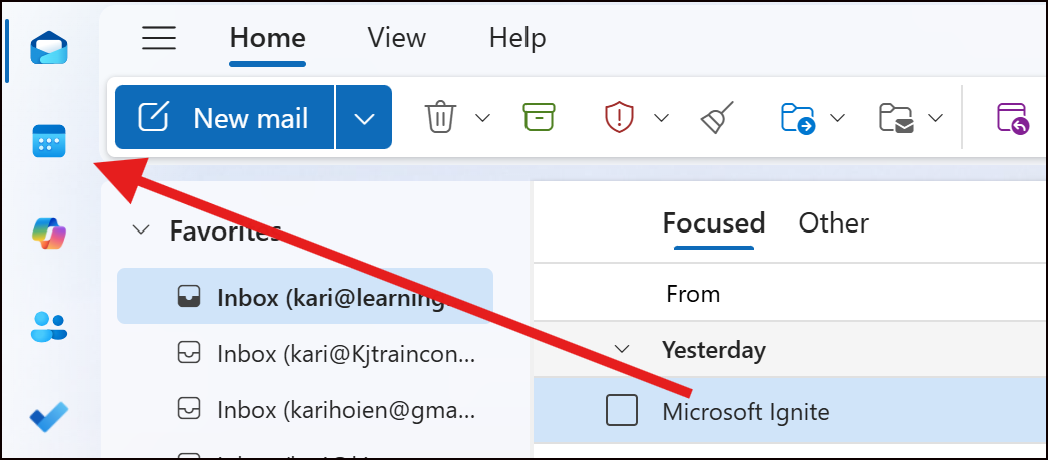
Drag the email onto the Calendar icon in the bottom-left corner of Outlook.
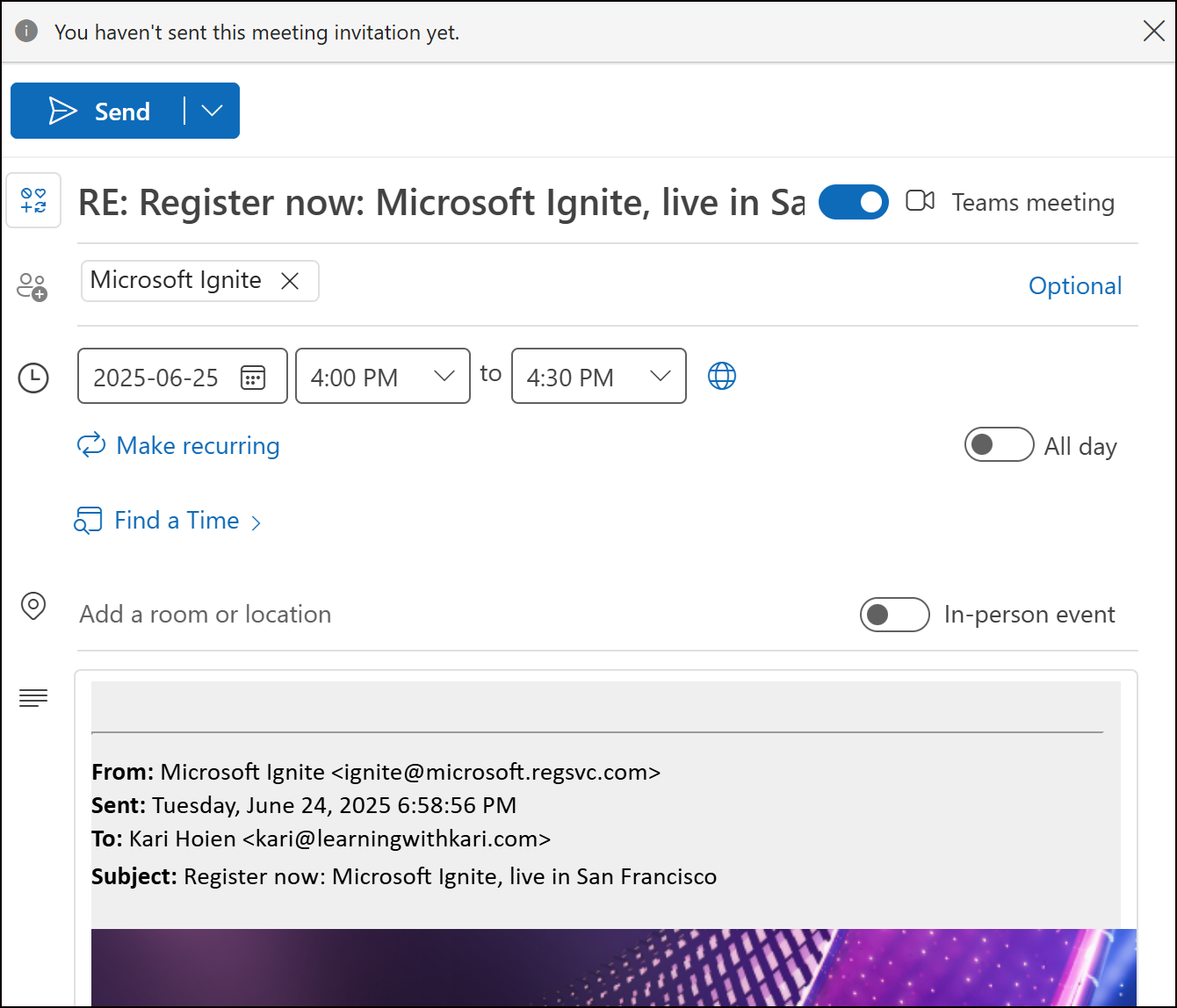
It opens a brand-new meeting or appointment with the subject, body, and any attachments already filled in.
📅 Reply with Meeting
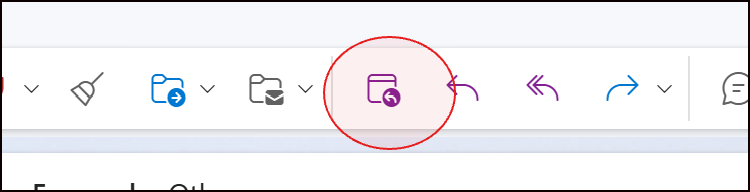
If the email requires discussion, click Reply with Meeting from the ribbon.
Outlook turns it into a calendar invite—perfect for scheduling quick syncs without retyping anything.
💡 Why This Saves Time:
✅ You don’t have to switch apps or retype details
✅ Keeps everything (context, attachments, info) in one place
✅ Helps you act quickly—while it's still top of mind
🎯 Pro Tip:
Use this feature when you feel that “we should just meet ...
