
Kari’s Tip #127: What's New In Outlook (that you ACTUALLY care about)?
Remember the old days? When a new version of Outlook came out, it was an event. Companies held off rolling it out, I packed up my laptop and headed into offices, and we made sure everyone understood the new interface and features before the switch happened. Fun note: some of you know me from THOSE DAYS!
Well… those days are long gone - Sorry :(
Now that most software is subscription-based (hello, SaaS), updates slip in quietly without any fanfare. And honestly, half the time we don’t need to know every little thing. But the other half? That’s where Microsoft sneaks in features that can genuinely help you work faster, stay organized, and save minutes (or hours) over a week — and most people never even notice them.
If you’ve opted into those “What’s New in Outlook” emails, you probably do what everyone else does: glance at the subject line, think “I’ll read that later,” and… yeah. Later never quite arrives.
And when you do read them? Half the updates sound like:
“Great… but why should I care?”
So I pulled together the highlights from the past few months — the features that actually matter — and added a quick “Why You Care” for each one. I also included screenshots where it helps, so you can see exactly what I’m talking about without hunting for it in your own Outlook.
Let’s make these updates work for you, not just float by in your inbox. Let’s dive in.
File Tab Finally Joins the Home Tab
You’ll now see File right next to Home.
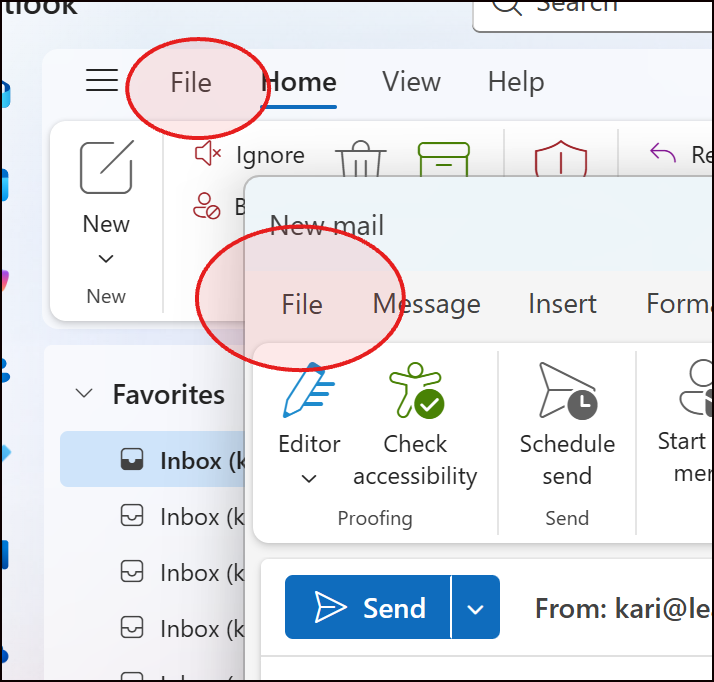
Why you care: You can get to Print, Accounts, Options… fast. Less hunting, more doing. Also - throw back to the days of menus 😉
Copilot can summarize long threads
A single click → a clean summary.
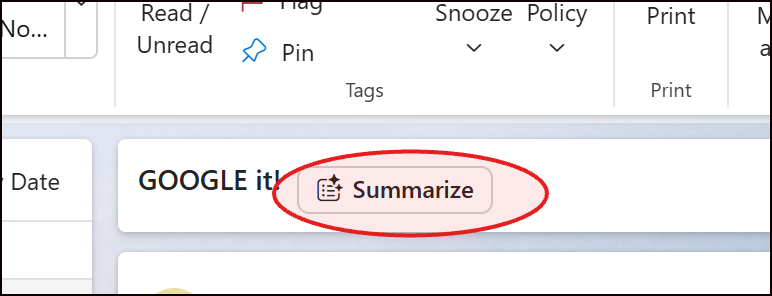
Why you care: Perfect for those never-ending reply-all's. Read the recap, skip the chaos.
Drag and drop multiple attachments
Use Ctrl + click to grab several files at once.
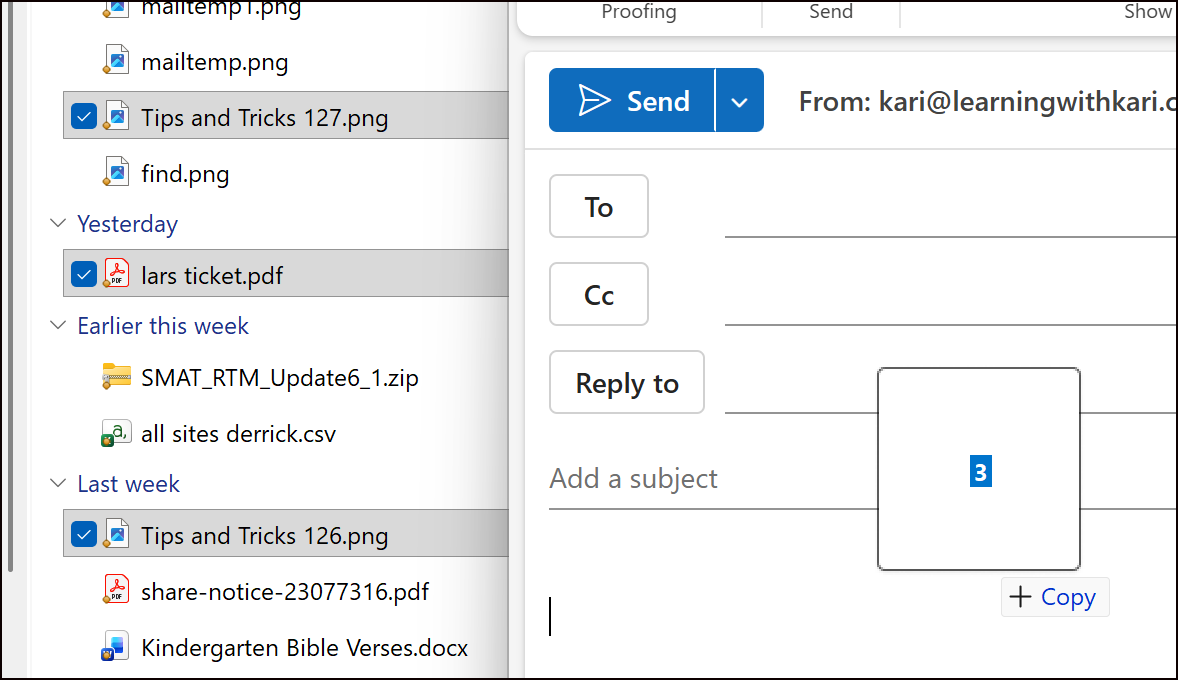
Why you care: If your job involves attachments, this makes life easier. Way easier!!
Ctrl + Shift + F - now finds text inside emails
Ctrl + Shift + F for search (and for Finally!) You can search with the shortcut key IN your emails. Note: this was not documented correctly by Microsoft.
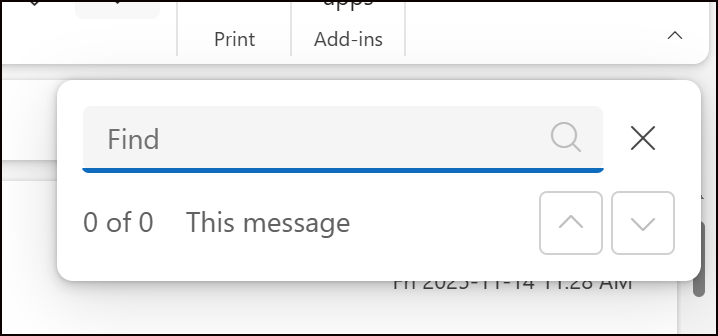
Why you care: Because searching within an email shouldn’t feel like a scavenger hunt.
Reply-To in sent messages
Choose who replies go to — even multiple addresses. This is actually not new - but they've made it MUCH more accessible.
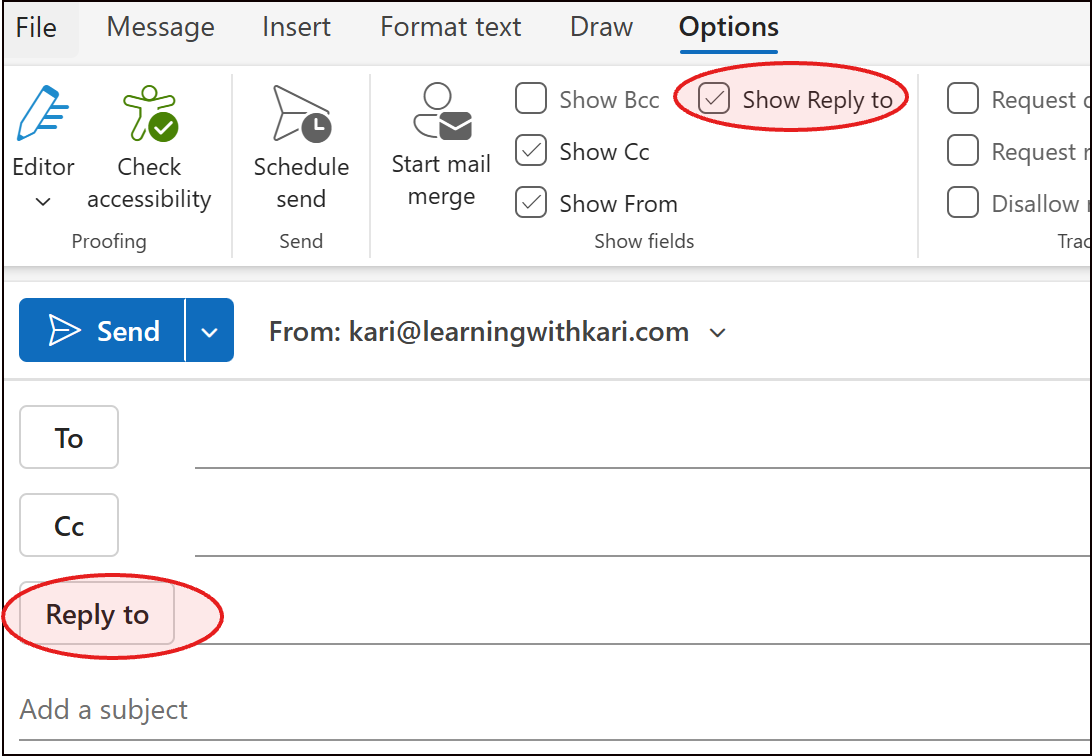
Why you care: Helpful when sending info “on behalf of” someone or managing group responses.
Email templates get easier
Writing something you send over and over?
Save it as a template right from the menu, Mail Template, Save email as template when composing.
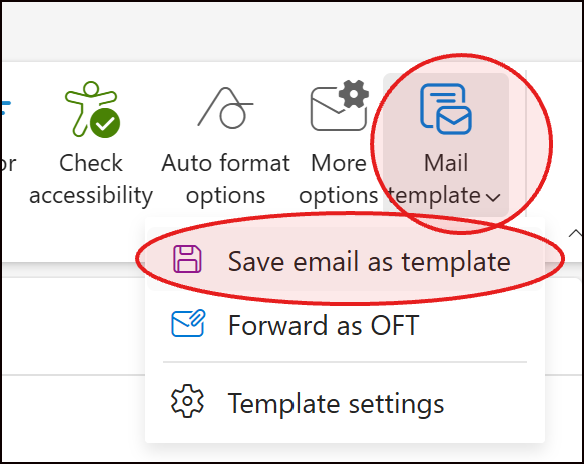
To use it later: New > Mail from template.
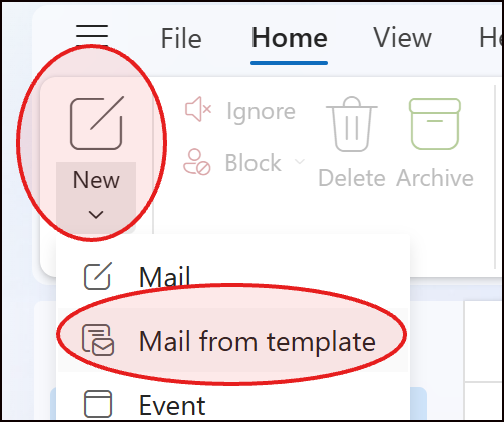
Why you care: This is a time saver every busy person should be using.
