
One click. Two seconds. Your most important emails — always at the top.
HI!! 👋
How are you doing with the last few week's tips? I'd truly love to hear if you are utilizing any of these tips — just hit reply and let me know!
Today's tip is only available in the New Outlook and the web based version of Outlook (not classic) — and it is one of those small features that can quietly change how you work every single day.
We've all been there.
You're in the middle of something important and you remember: "I need to follow up on that email." So you go to your inbox. You scroll. You search. You get lost in your inbox. You lose two minutes — (or more 😏) — AND your train of thought.
What if the emails that need your attention, the ones you know you're gonna need to find in the near future were simply — always at the top? Just sayin? 🤷♀️
🧠 The Mental Load of "Don't Forget That Email"
Last week we talked about using Rules to move low-priority emails out of your way. This is the flip side: making sure your high-priority emails are impossible to miss.
Most of us manage this with mental sticky notes.
"I need to come back to that."
"Don't forget to reply."
"That one is important."
That is not a system. That is a slow leak on your focus (and brain power).
Every email you're mentally "tracking" is a tiny background process running in your brain all day. And those processes add up.
Pinning is the digital equivalent of putting something right in front of the door so you can't leave without seeing it - or putting a sticky note on your screen. It offloads the reminder from your brain to your inbox.
📌 The Tip: Pin Emails to the Top of Your Inbox
Outlook now lets you pin any email so it stays anchored at the very top of your inbox — no matter what else comes in. It doesn't move. It doesn't get buried. It just waits for you. It's like a virtual bulletin board!
Think of it as a two-second "to-do" that lives right where you already spend your time.
📋 How To: Pin an Email
1. Hover over the email in your inbox — a small toolbar appears to the right of the subject line.
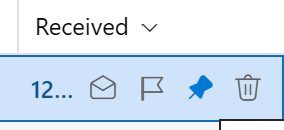
2. Click the pin icon 📌 — the email jumps to the top of your inbox and stays there until you unpin it
That's it. No folders. No flags. No rules. Just — pinned.
Other ways
📌 Other Ways to Pin
- Right-click the email
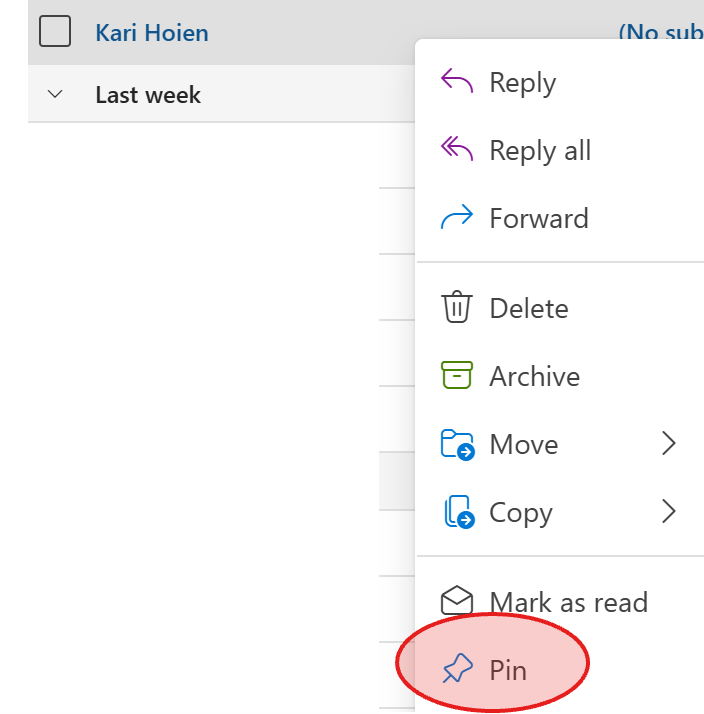
- Use the ribbon to pin an email.

📌 Pin on Purpose: Your Virtual Bulletin Board
Think of your pinned emails like a bulletin board.
A bulletin board with three things on it? Powerful. You see exactly what needs your attention the moment you walk in the room.
A bulletin board with twenty things on it? It's just a wall of noise. You've recreated the exact problem you were trying to solve — just at the top of your inbox instead of buried in the middle.
Here's the rule I want you to keep:
Pinning is temporary. It is not a filing system. It is not a to-do list. It is a "don't you dare forget this" signal for the short term — until the thing is done, replied to, or handled.
Once it's done → unpin it. Immediately.
Ask yourself before you pin: "Is this urgent or genuinely can't-forget?" If the answer is no — it doesn't earn a pin.
A clean pin section (3–5 max) means it's actually doing its job. The moment you can't see what's pinned at a glance, it has stopped working for you.
🎯 Why This Fits the Way You Actually Work
This isn't about organizing your inbox more. It's about organizing your attention better.
'📏 Rules clear out the noise.
'📌Pinning surfaces what matters.
Together, they give you an inbox that works for your brain instead of against it.
When you sit down to work, your pinned emails tell you: "These are the things waiting on you." No scrolling. No hunting. No mental overhead.
Intentional, purposeful technology. That's the goal.
🎯 Your Move This Week
Go pin one email right now. Not later. NOW. 😊
It takes two seconds — and you'll immediately feel the difference of having your most important emails waiting at the top, instead of somewhere in the middle of the noise.
💓 Why I Share These Tips
The heart 💓 behind the work I do is that I want to help you protect your time ⏰ and energy from the little drains that nibble away at your day.
I don't want you stuck googling how to fix something, or buried in your inbox trying to remember who you're waiting on.
I hope you trust me to give you the tools ⚙️ to clear that noise so your time can flow toward things that matter more — your people, your health, the work you care about, and the parts of life that actually feed you.
My mission is simple: Help you use technology in a way that supports your life, instead of stealing from it.
⏰ Take Back Your Time!
If you're ready to move beyond just tweaking settings and want a full system to master your workflow, I'd love to help you get there.
In my Inbox Relief Outlook course, I teach:
- A simple folder strategy that actually works today (and why most people are using the wrong one)
- How to keep your inbox clean without spending hours filing
- How to build an attention‑friendly workflow that matches Microsoft 365 as it is now
Your time—and your attention—deserve better than a noisy inbox.
👉www.learningwithkari.com/blog
📚 Ready to Go Deeper?
If turning off notifications was step one…
And using Rules (with a review plan) was step two…
And Pinning your priority emails is step three…
Then step four is building a complete, calm inbox system that works with how you think — not against it.
In my Inbox Relief Outlook course, I teach a simple folder strategy, how to keep your inbox clean without spending hours filing, and how to build an attention-friendly workflow that matches the way Microsoft 365 works today.
🙋♀️ Want a Little More Help? I've Got You.
If you're reading through these tips and thinking, "Oh wow… we could use some training on this," you're not alone. Reply to this email and ask for my course catalog — I can train your team.
All my best,
Kari
Microsoft 365 Trainer & Productivity Coach
learningwithkari.com
Helping you save time, get organized, and feel confident using Microsoft 365 tools.
✨ P.S. Have a question or idea for a future tip? Just hit reply — I’d love to hear from you!

Responses