
A simple Outlook trick that keeps your inbox clean and your mind clear!
HI!!
I hope you're enjoying my Tips & Tricks! I love finding things that will save you time and help you do your job better! My mantra — Work Smarter, Not Harder!
I love hearing from you — keep sending me your ideas for future tips or feedback on what’s working for you… just hit REPLY! I read and respond to every email! Try me!
I've got another great trick! Today’s trick is one of my NEW FAVORITES for reducing your Outlook anxiety… so here we are with Kari’s Tips and Tricks #130: The “Waiting for Response” Folder — The Secret to Stress-Free Follow-Up!
Tiny Interruptions add up to HOURS of Time Wasted
Lately I’ve been paying close attention to how much of our day gets chipped away by tiny interruptions — not dramatic ones, just the constant tug of “Don’t forget this…,” “Check that…,” “Follow up on that…”
It’s subtle, but it adds up. And if you’re feeling that constant mental buzz, you're not imagining it — we are living in a time where everything is asking for a slice of our attention. Remember the stat I sent in my last email? The average person spends 28% of their work week (that's a WHOPPING 11 Hours)!!
I’m in a season where I want to live with more intention, less distractions.
Not slowing down in the sense of quitting or doing less — but slowing my mind enough to stay focused on what actually matters and also to produce better quality work. I’m trying to be thoughtful about what gets access to my attention, and what doesn’t.
We used to hunt for information. Now information hunts us.
Which means the real skill today isn’t gathering more — it’s choosing what to let in.
And that choice matters, because your attention is one of the most valuable things you own.
When Email Pulls You Away From Your Best Work
A lot of digital distraction starts in one place: our inbox.
Not because email is bad — but because unmanaged email quietly becomes a constant tap‑tap‑tap on your attention.
We worry we’ll forget something we sent.
We manually track follow‑ups in our head.
We check again… and again… and again.
And the checking itself becomes the drain.
But the good news?
You don’t actually need more willpower…
You just need systems that remove the mental load altogether.
That’s exactly what today’s tip is about.
The Waiting for Response Folder is a small workflow shift that gives you a huge amount of clarity — because it removes one of the biggest triggers of constant checking: the fear of forgetting.
This isn’t just an Outlook trick. It’s a way to reclaim a little more calm, a little more focus, and a little more control in a noisy digital world.
Do you ever send an email… then immediately think:
“Ugh… I hope they reply.”
“Did I remember to follow up?”
“What if it gets lost in their inbox?”
If so… you are NOT alone! This tiny trick eliminates that mental load.
How Does it Work?
A simple folder + Quick Step that automatically stores emails you’re waiting on, so you never need your brain to track them.
- You send an email, Outlook files the original in “Waiting for Response” folder.
- You check the folder once a day or once a week.
That’s it. No stress. No scrolling. No worrying.
How to Set it up
Step 1: Create the Folder
- Right-click your Inbox
- Choose New Folder (subfolder of your inbox)
- Name it: Waiting for Response
Step 2: Create the Quick Step
- Go to the Home tab
- Click Quick Steps
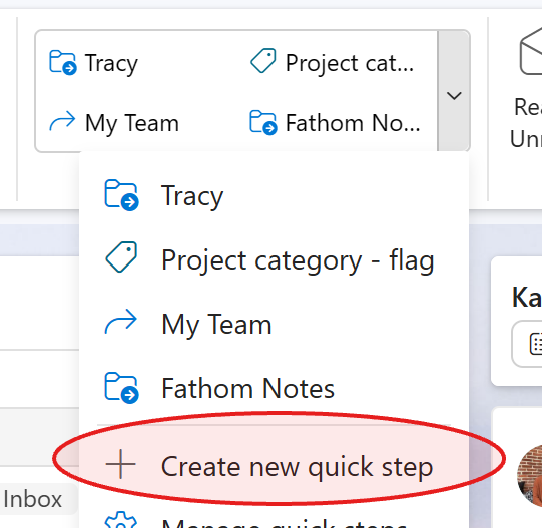
- Choose Create New
- Name it: Waiting for Response
- Add these actions:
- Move to Folder → Waiting for Response
- Mark as Read
- (Optional) Flag for Follow-Up
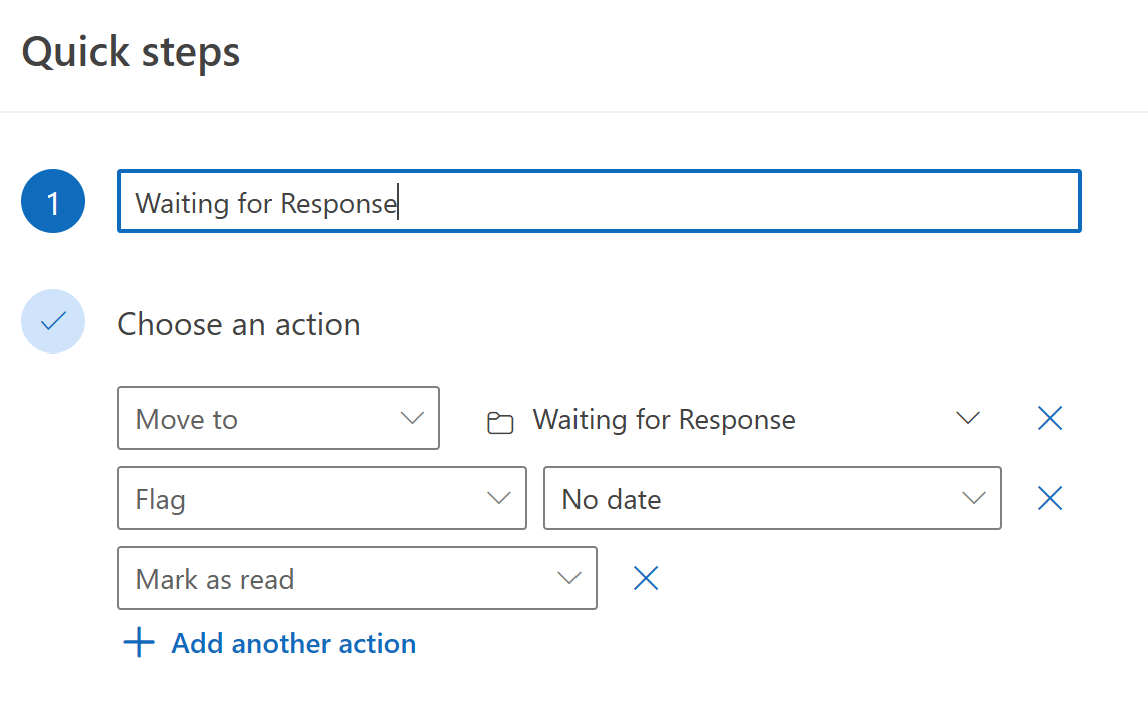
- Click Finish
How to Use It
After you send an email that requires a reply:
→ Click the Waiting for Response Quick Step
→ Done!
Check the folder:
- Daily if your role is fast-paced (put it on uour calendar)
- Weekly if your role is more strategic (put it on uour calendar)
This folder is NOT a to-do list. It’s a trust-but-verify system.
Why I Share these Tips with You!
The heart 💓 behind the work I do is that I want to help you protect your time ⏰and energy from the little drains that nibble away at your day.
I don’t want you stuck Googling how to fix a spreadsheet, or buried in your inbox trying to remember who you’re waiting on.
I want to give you the tools ⚙️to clear that noise so your time can flow toward things that matter more — your people, your health, your work you care about, and the parts of life that actually feed you.
My mission is simple: Help you use technology in a way that supports your life, instead of stealing from it.
⏰ Take Back Your Time!
If you’re ready to move beyond just turning off notifications and want a full system to master your workflow, I’d love to help you get there.
Join Inbox Relief Let’s reclaim your attention together."
🙋♀️ Want a Little More Help? I’ve Got You.
If you’re reading through these tips and thinking, “Oh wow… we could use some training on this,” you’re not alone. Reply to the email and ask for my course catalog - and I can train your team.
📚 Want to Learn More?
You can always find all my Tips and Tricks —including past ones on Teams, Outlook, OneNote, and more—are on my website.
👉www.learningwithkari.com/blog
All my best,
Kari
Microsoft 365 Trainer & Productivity Coach
learningwithkari.com
Helping you save time, get organized, and feel confident using Microsoft 365 tools.
✨ P.S. Have a question or idea for a future tip? Just hit reply — I’d love to hear from you!

Responses