
Hi!
I'm a few days late this week - it's been a bit of a whirlwind at my house — my son got hit in the eye with a soccer ball during a game, and we ended up spending a lot of time in the ER and at the eye doctor. (He’s doing much better now!)
While I was away from my desk, I still had a few things that needed to get to my clients and co-workers. Thankfully, I was able to quickly share the files straight from my OneDrive app— no need to log in to work or email big attachments. It reminded me just how helpful OneDrive’s sharing feature really is.
✨ Why OneDrive Sharing is So Helpful:
-
You can share ad hoc — perfect for a one-off file you need to send without creating a whole new Team or SharePoint site.
-
You can set an expiration date for the link, so access ends automatically after a certain day. (This is a great security feature.)
-
You can change or stop sharing later if you no longer want someone to have access.
-
And if you have the OneDrive mobile app, it’s even easier — you can share files right from your phone while you’re out and about.
📌 How you can quickly share a file or folder
- Open OneDrive (web, desktop or app).
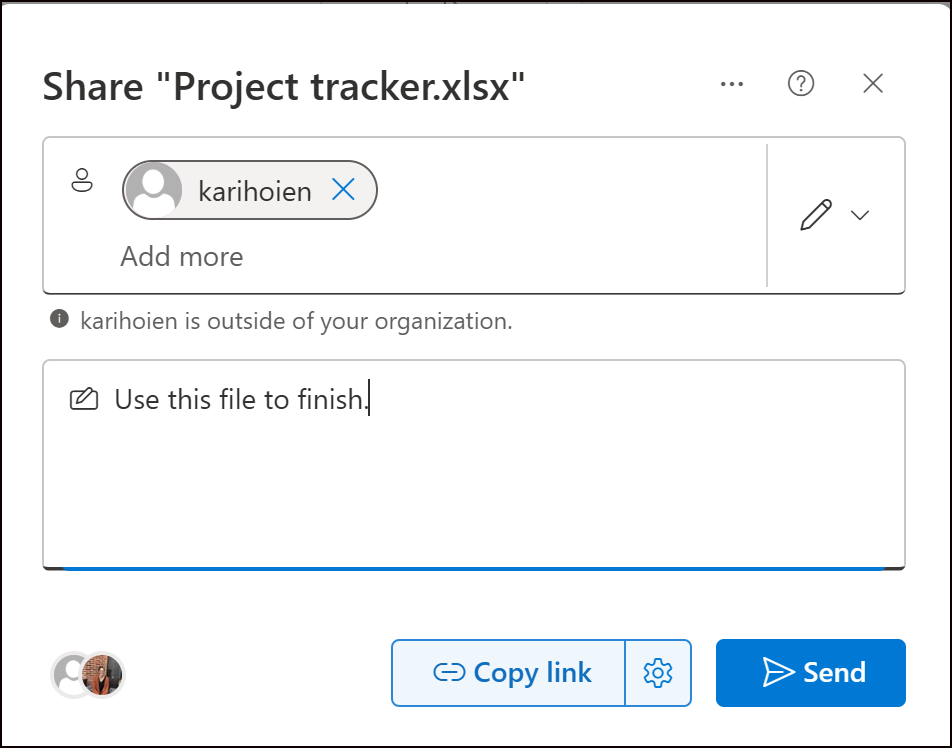
- Right-click the file or folder you want to share and select Share.
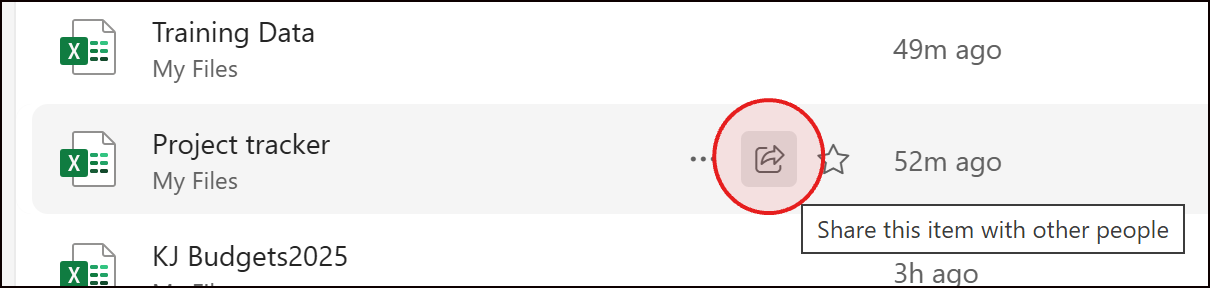
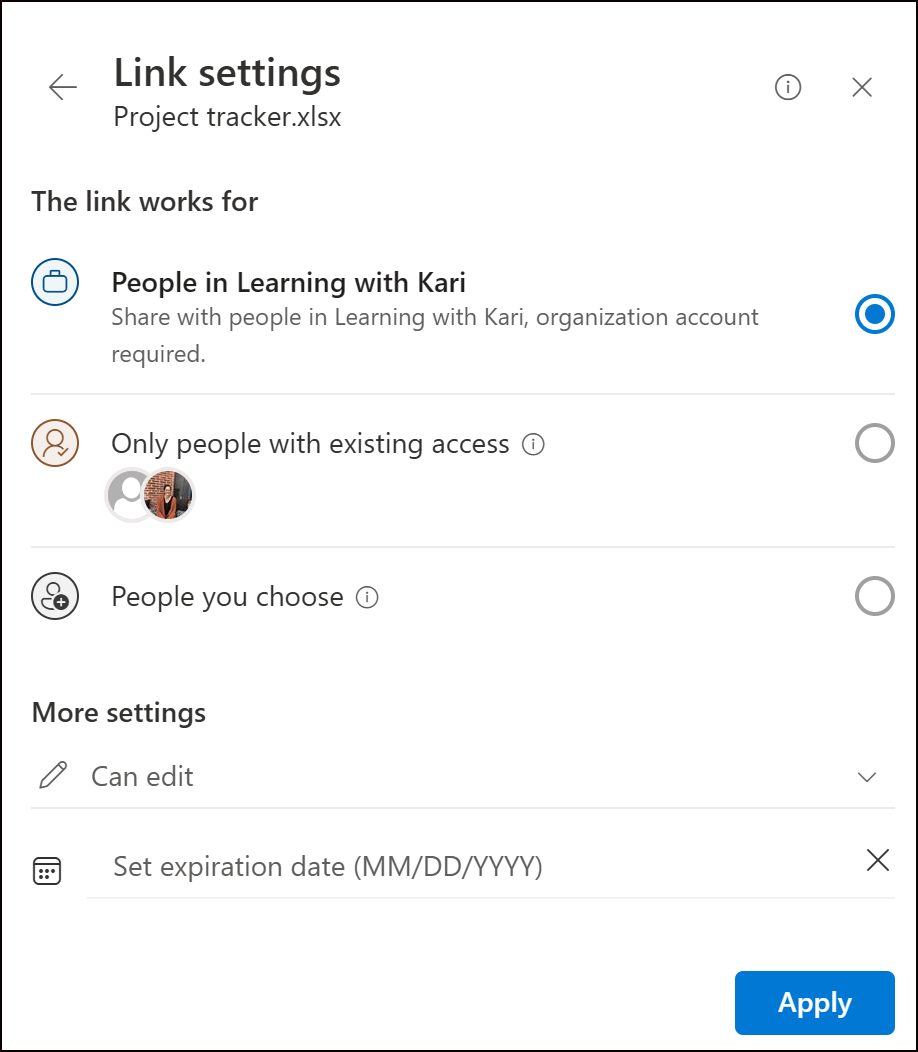
- Choose who can access it (People you choose, Anyone with the link, etc.)
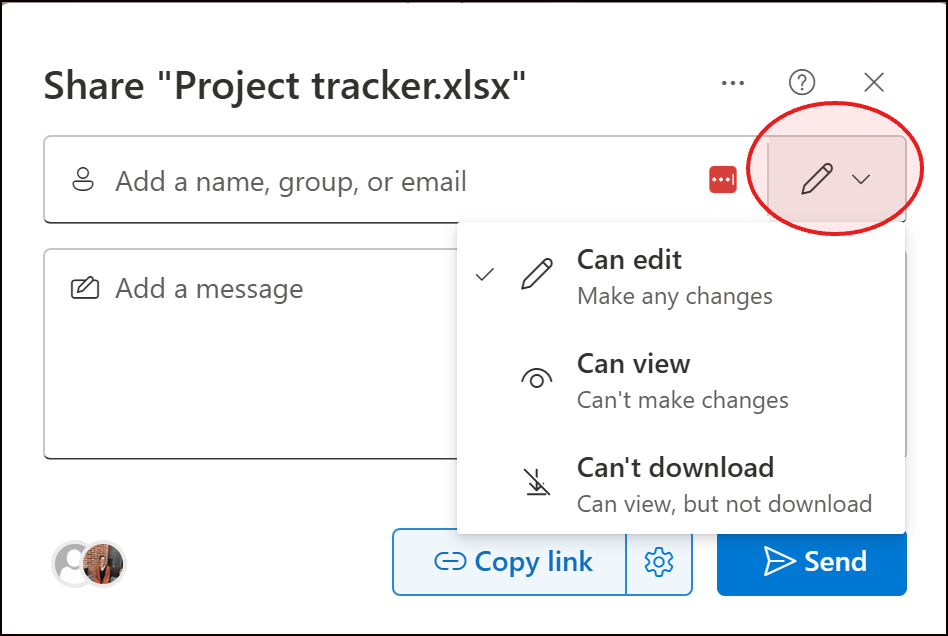
- Decide if they can view (read-only) or edit the file.
- Determine if you want the link to expire using the settings.
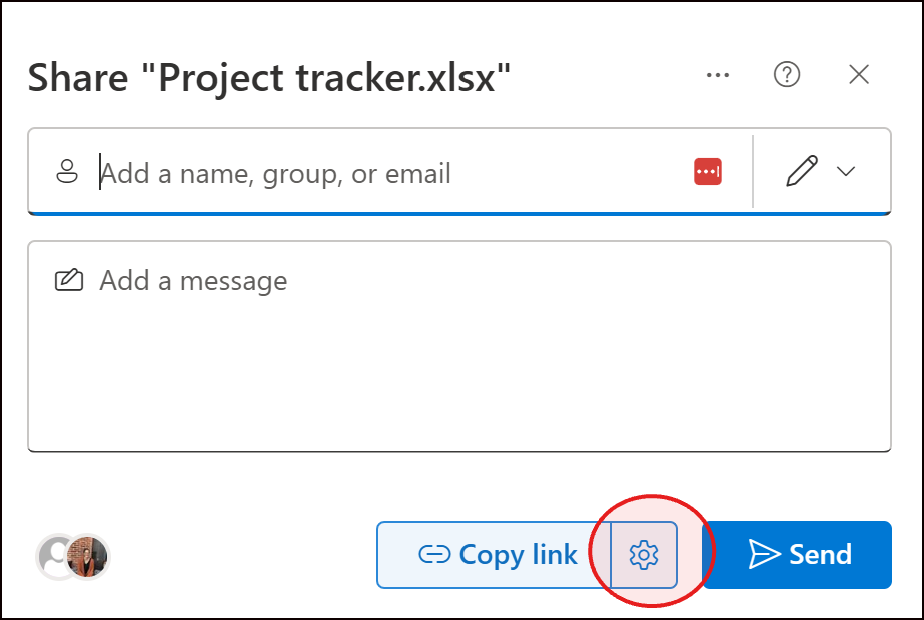
- Send the message.
💡 Pro tip: You can add multiple shortcuts from different Teams and SharePoint Libraries. They’ll all live neatly in your OneDrive, giving you a single hub for quick access.
🔒 A Quick Note About Settings
Each company sets its own sharing policies, especially for external users. That means some of the options you see (like “Anyone with the link”) might be restricted — and that’s normal! Your IT team controls what’s allowed to keep your organization secure.
🔒 Why It’s Secure:
OneDrive uses enterprise-grade security, including encryption while files are stored and while they’re being shared. You control exactly who has access, whether they can view or edit, and you can remove their access anytime. Your IT team can also manage company-wide settings to keep external sharing safe.
Watch the Video....📽️
 |
💡 Why This Matters
- When you know how to share from OneDrive, you stay productive no matter where you are.
- You control who can view or edit your files, for how long, and can stop sharing anytime.
- It’s flexible, secure, and takes the stress out of getting information to the right people — even when life throws you a curveball.
🔜 Coming Soon: My brand-new course on cutting through Microsoft 365 file chaos — so you always know where to save and how to find it.
You’ll learn:
-
How OneDrive, Teams, and SharePoint actually work together
-
When to use which app (with real examples!)
-
Strategies to cut through file chaos and confusion
👉 Want early access or updates? Join the waitlist here or just hit reply and let me know — I’d love to hear from you.
📚 Want to Learn More?
You can always find all my Tips and Tricks —including past ones on Teams, Outlook, OneNote, and more—are on my website.
👉www.learningwithkari.com/blog
All my best,
Kari
Microsoft 365 Trainer & Productivity Coach
learningwithkari.com
Helping you save time, get organized, and feel confident using Microsoft 365 tools.
✨ P.S. Have a question or idea for a future tip? Just hit reply — I’d love to hear from you!

Responses