

Hi there!
Last week, I shared my “Where to Save” tip — how to know whether to put files in OneDrive, Teams, or SharePoint.
This week, we’re tackling the next challenge: finding those files again without going on a digital treasure hunt. 🗺️
And speaking of treasure hunts… with one kid heading off to college and another starting their senior year of high school next week, I’m feeling the full back-to-school energy — organizing, prepping, and yes, searching for everything. Stay tuned for pics next week 📷. Now let’s make sure your digital workspace is easier to navigate than your kitchen counter right now. 😉
✅ Understand Where Files Live
- OneDrive = your personal cloud storage
- Teams = a window into SharePoint (files live in the team’s SharePoint site)
- SharePoint = shared document libraries across your org
🗝️ Tip: Open a file in Teams → click “Open in SharePoint” to see its true location and unlock full search/filter options.
✅ Use the Global Search Bar — But Know What It’s Searching
- In Teams, it searches chats, channels, and files stored in that team’s SharePoint

- In Outlook, it searches emails, attachments, and contacts

- In SharePoint, it searches the current site — unless you open the SharePoint app, which searches across all sites (including Teams)

✅ Use M365 Search to Search Everywhere 🌐
Go to m365.cloud.microsoft.com/search or Office.com
- Click Search in the left bar.
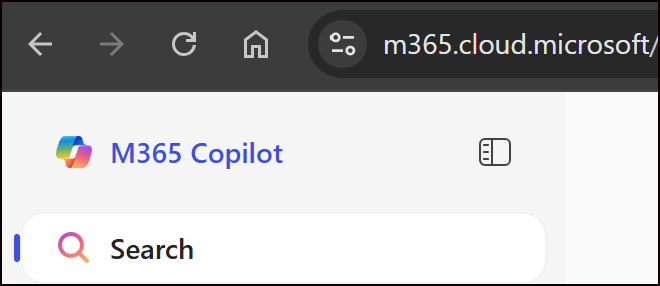
- Type a phrase, file name, or even content inside a document
This searches across OneDrive, SharePoint, Teams, Outlook, and inside documents — it’s your most powerful search option.

💡 Bonus: Use Ctrl + E in Outlook or Ctrl + F in Teams to jump straight to search.
✅ Filter Like a Pro
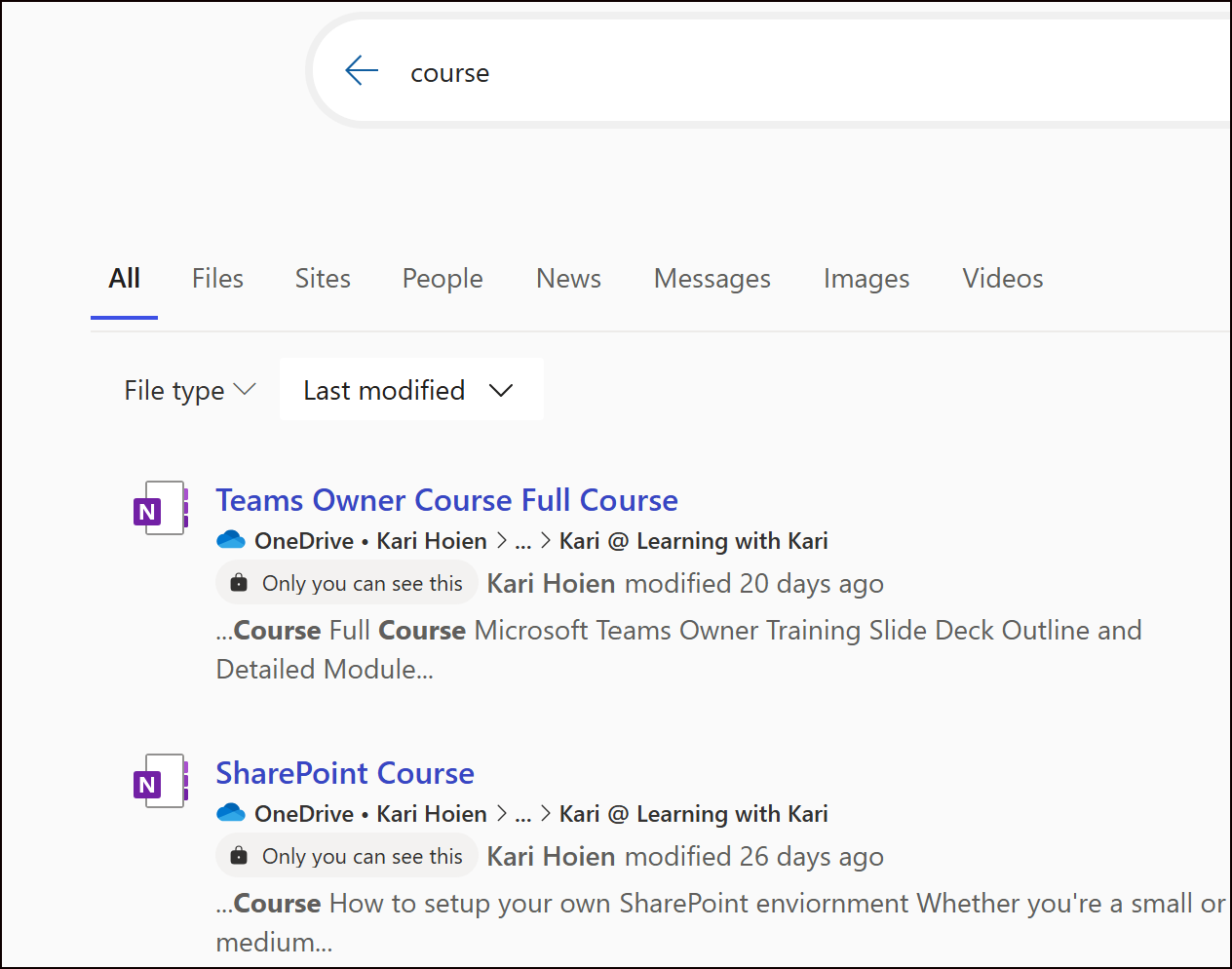
After searching, narrow results by:
- Location (OneDrive, Teams, SharePoint)
- File type (Word, Excel, PDF)
- Modified date or Author
✅ Search Inside Files
Microsoft 365 can search the actual content of documents — so even if you forgot the file name, a phrase you remember can bring it up.
💡 Why This Matters
Knowing where files live — and where your search bar is looking — helps you search smarter, share safer, and avoid the “where did I put that?” spiral. 🌀
🔜 Coming Soon: My brand-new course on cutting through Microsoft 365 file chaos — so you always know where to save and how to find it.
You’ll learn:
-
How OneDrive, Teams, and SharePoint actually work together
-
When to use which app (with real examples!)
-
Strategies to cut through file chaos and confusion
👉 Want early access or updates? Join the waitlist here or just hit reply and let me know — I’d love to hear from you.
📚 Want to Learn More?
You can always find all my Tips and Tricks —including past ones on Teams, Outlook, OneNote, and more—are on my website.
👉https://www.learningwithkari.com/blog
All my best,
Kari
Microsoft 365 Trainer & Productivity Coach
learningwithkari.com
Helping you save time, get organized, and feel confident using Microsoft 365 tools.
✨ P.S. Have a question or idea for a future tip? Just hit reply — I’d love to hear from you!

Responses