

Hi!!
Happy August!
You’ve probably heard me say it before — my passion is helping you save time, so you can spend more of it on what truly matters. I’m all in on teaching tools and tips that make your work life easier.
Last week? I practiced what I preach — soaking in summer with some of my family at the lake. 🍻☀️🎣

Being at the lake reminded me why I care so much about helping you save time — because when work is streamlined, there’s more space for moments like that.
And lately, one topic has been coming up again and again in my consulting calls: the Microsoft cloud ☁️ — specifically, OneDrive, Teams, and SharePoint.
So let me ask you a quick question…
You’re working in Microsoft 365 and need to save a file — but should it go in OneDrive, Teams, or SharePoint?
Let’s clear it up with simple, practical tips you can use today — plus a sneak peek at something new I’m creating just for you.
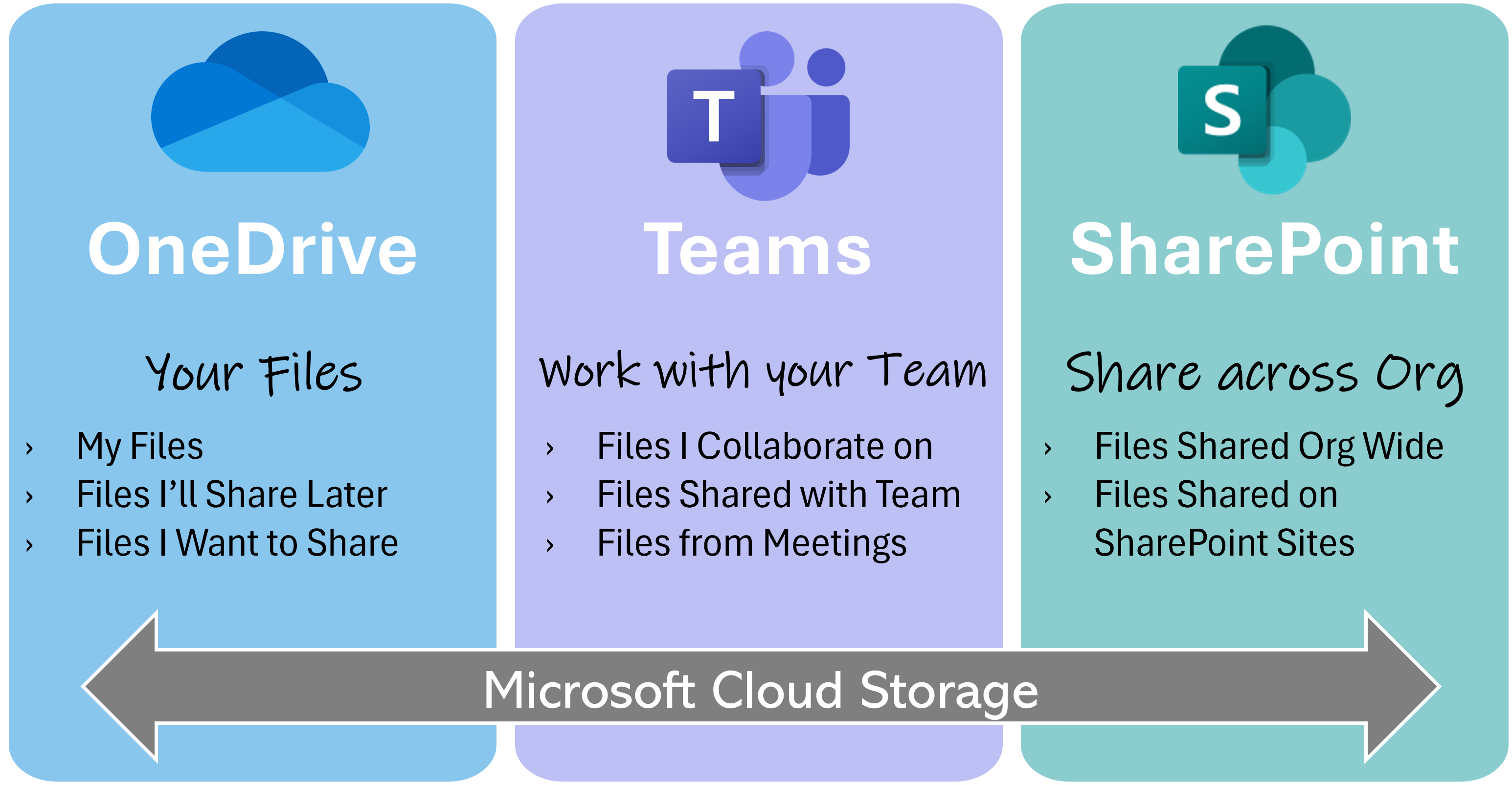
✅ OneDrive = For you
Think of OneDrive as your personal cloud storage. It’s private by default and perfect for:
-
Notes, drafts, or working files
-
Docs not ready to share yet
-
Your own project materials
⭐ Pro Tip: Deleted something by accident? The OneDrive Recycle Bin keeps files for 30+ days. You can restore them in just a few clicks.
✅ Teams = For your group
When you upload a file in a Teams channel, it’s actually stored in a connected SharePoint site. Everyone in the Team can access it. Use it for:
-
Collaborative documents
-
Meeting notes or shared agendas
-
Day-to-day work with your team or department
⭐ Pro Tip: Open files in the desktop app (“Open in app”) for the best editing experience — especially in Excel and PowerPoint.
✅ SharePoint = For the whole organization
SharePoint works best for:
-
Company-wide templates and resources
-
Department libraries with structure and metadata
-
Content that needs to be organized and secure
⭐ Pro Tip: Use the Quick Links web part on your SharePoint home page to give your team easy access to top folders, files, or Teams channels.
💡 Why This Matters
When you understand where to save your files, you’ll:
-
Find things faster
-
Avoid permission headaches
-
Save time for what matters most
🔜 Coming Soon: A Clear, Practical Course on Microsoft Cloud Tools
If you’ve ever wondered “Where should I save this?” — or spent too long trying to find something later — this upcoming course is for you.
You’ll learn:
-
How OneDrive, Teams, and SharePoint actually work together
-
When to use which app (with real examples!)
-
Strategies to cut through file chaos and confusion
👉 Want early access or updates? Join the waitlist here or just hit reply and let me know — I’d love to hear from you.
📚 Want to Learn More?
You can always find all my Tips and Tricks —including past ones on Teams, Outlook, OneNote, and more—are on my website.
👉https://www.learningwithkari.com/blog
All my best,
Kari
Microsoft 365 Trainer & Productivity Coach
learningwithkari.com
Helping you save time, get organized, and feel confident using Microsoft 365 tools.
✨ P.S. Have a question or idea for a future tip? Just hit reply — I’d love to hear from you!

Responses