
 Hi!
Hi!
Is it hot 🔥🥵 where you are too? Here in Wisconsin it is STEAMY!!
Time for another Great Outlook Tip.
Ever wish you could schedule an email to go out later—without waking up early or staying late?
Outlook makes it easy with the NEW and IMPROVED Schedule Send feature.
⏱ Time to Read/Watch: ~2 min
📬 How to Use It:
- Create a New Message → Click arrow next to Send → Schedule Send.
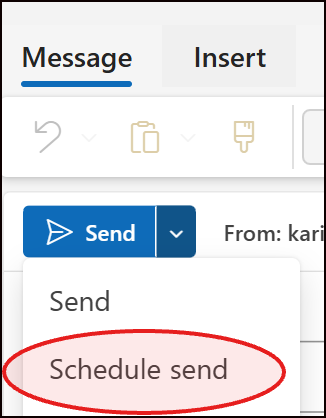
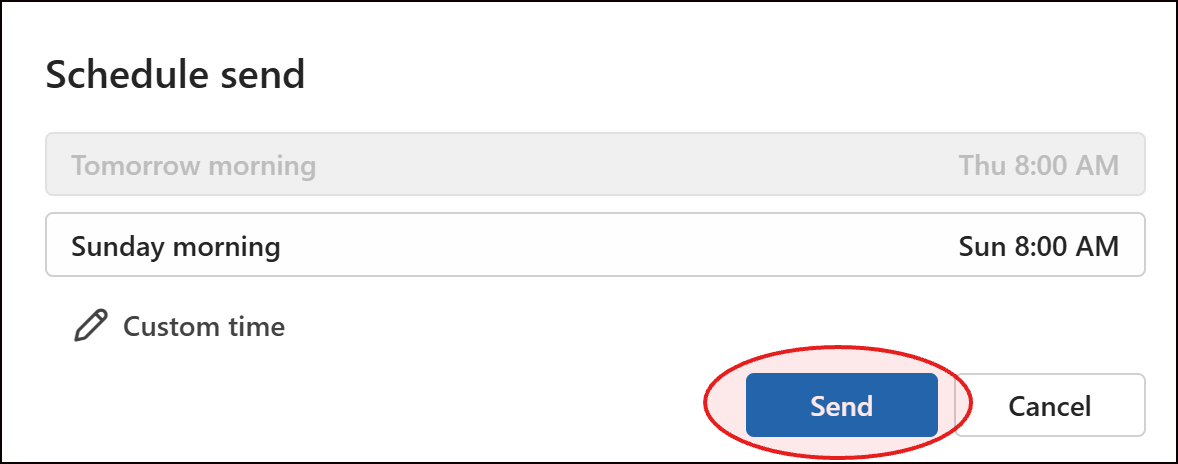
- Select the date and time you want to have the email sent and click Send.
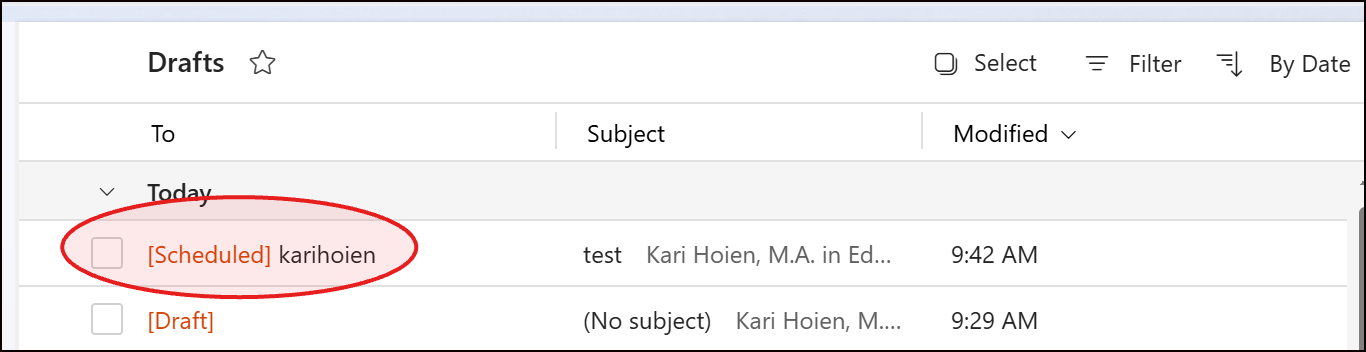
- Once you send the message, it will sit in the Drafts folder until it is sent. You do not have to have your computer on or be connected to the internet in order for it to send. If you want to change the message, or when it will be sent you can open it from here.
Whether you’re working late, planning ahead, or spacing out communication—this gives you control over when messages go out.
💡 Why This Saves Time:
✅ Keeps you productive without sending emails at odd hours
✅ Prevents inbox pileup for your coworkers
✅ Helps you plan communication in advance
🎯 Pro Tip:
Use this feature to queue up weekly updates, reminders, or next steps after a meeting—while they’re still fresh.
📚 Want to Learn More?
You can always find all my Microsoft 365 tips—including past ones on Teams, Outlook, OneNote, and more—on the blog:
👉learningwithkari.com/bloghttps://www.learningwithkari.com/blog/TipsandTricks119

P.S. Did you catch my Inbox Relief course launch?
It’s still available for just $77—perfect if your inbox is running your day instead of the other way around!


Responses