
 Hi there! 😊
It’s that time again—another quick tip to help you feel more confident and in control using Microsoft 365 at work!
Give me 5 minutes—and learn how to fix the new Teams layout. 🛠️
Lately, you may have noticed something weird or missing when you open Microsoft Teams:
👉 Where did the Teams icon go on your Teams Navigation?!
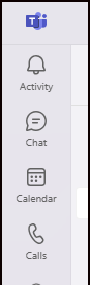
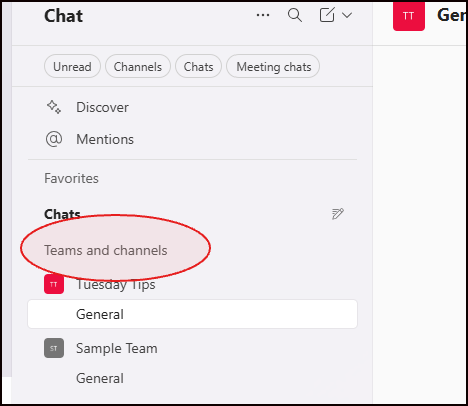
If your Teams tab suddenly disappeared and now your teams are in “Chats” in the sidebar, you're not imagining things—it’s part of a recent Microsoft navigation update. 😵💫
Good news: you can move it back!
🔄 What Changed?
Microsoft introduced a new layout that places your Teams inside the Chats by default. This update is part of their push to streamline personal conversations and group work—but it’s tripping up a lot of users who prefer the old layout.
🧭 How to Move the Teams Tab Back to the Top
-
Open Teams
-
Click on the three dots (···) at the bottom left
-
Choose Settings
-
Select Chats and channels
-
Select Separate (instead of combined)
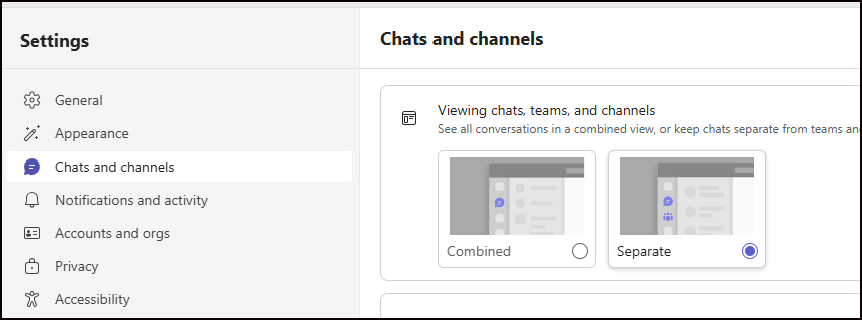
✅ That’s it! Your familiar layout is back.
🎥 Video Walkthrough!

🎯 Why It Matters:
-
Many users feel more productive with Teams as a separate icon in the navigation.
🛠️ Customize your layout to match how you work best.
📚 Want to Learn More?
You can always find all my Microsoft 365 tips—including past ones on Teams, Outlook, OneNote, and more—on the blog:
👉learningwithkari.com/bloghttps://www.learningwithkari.com/blog/TipsandTricks116

P.S. Did you catch my Inbox Relief course launch?
It’s still available for just $77—perfect if your inbox is running your day instead of the other way around!


Responses