

HI!!
I'm shaking things up a bit. As I think about how I love to help people - technology is one way - but I also like to share personal productivity tips. So I'm going to sprinkle some of these in too.
Today it's - an iPhone tip that has to do with scheduling texts to send in the future - you'll see it at the end of the email!
Because, as you know by now, I want to help you Work Smarter - Not Harder!
As I switch things up - be sure to let me know what you like - and what you don't - just hit REPLY! Your feedback (like how some of you adore videos 🎥) helps me make this newsletter exactly what you need!
✨ Dynamic Search Folders in Outlook—Your Inbox, Smarter!
Is your Outlook inbox a chaotic mess of emails? Stop wasting time filing messages manually! Today’s Kari’s Tips & Tricks #112 shows you how to use 📥 Dynamic Search Folders to auto-organize emails in Outlook. Find what you need with one click—no more digging!
🎥 Video Walkthrough!
You asked, I listened—videos make learning a breeze!
Here's the video for this week -Video Tip
📥 Eliminate Filing Messages in Outlook with Dynamic Search Folders! 🔍
Time to Read/Watch: ~2 min
Got an inbox overflowing with emails from clients, projects, or that one VIP? Set up a Dynamic Search Folder to automatically sort and display the messages you need! Here’s how to create one in Outlook in a snap:
Why Dynamic Search Folders?
Before we dive into the how, let’s talk why these are a game-changer!
Outlook is your communication hub, but manually sorting emails into folders is a time suck. To be honest, even if you use rules, sometimes they work - but then you end up filing something away and never finding it again. Dynamic Search Folders act like smart, virtual folders that automatically collect emails based on your criteria—like sender, keywords, or unread status. They update in real-time, so you’re always organized without lifting a finger!
Think Smart Mailbox 🧠
Picture a mailbox that magically sorts itself! Need all emails from your boss? Or ones with “urgent” in the subject? Dynamic Search Folders keep them front and center, ready when you are.
What to Search For?
Start simple! Think about emails you hunt for daily:
- 📧 From a key client or manager?
- 🔥 Containing specific words like “project” or “deadline”?
- 📬 Unread or flagged messages?
Pick 1-2 criteria to focus on what matters most.
How to Create Dynamic Search Folders in Outlook
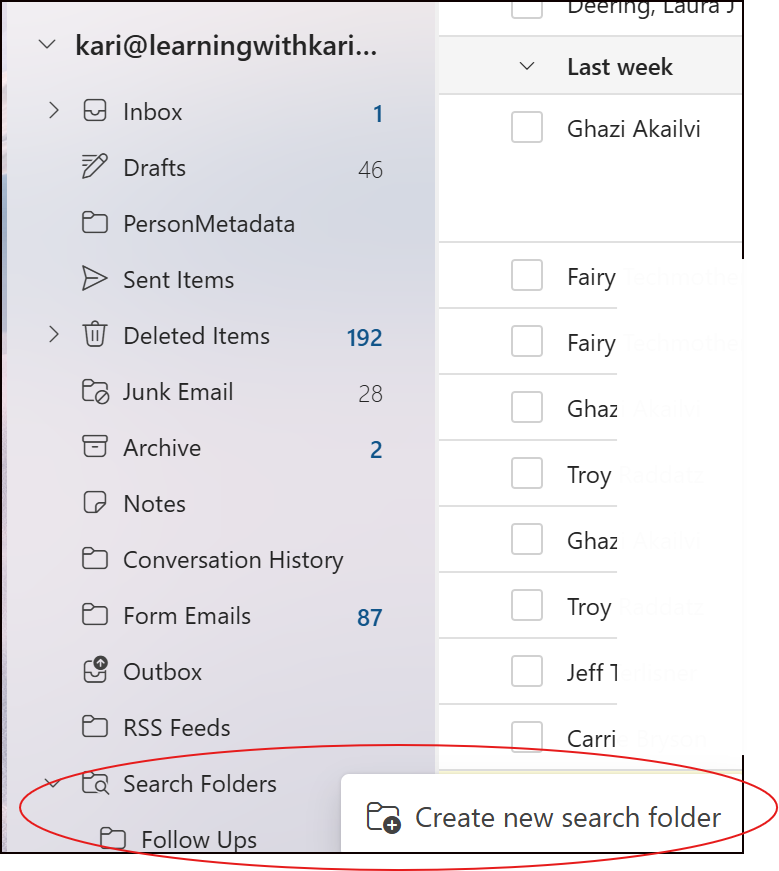
- Open Outlook & Go to Search Folders
In the Folder Pane (left side), right-click Search Folders and select New Search Folder.
- Choose Your Criteria
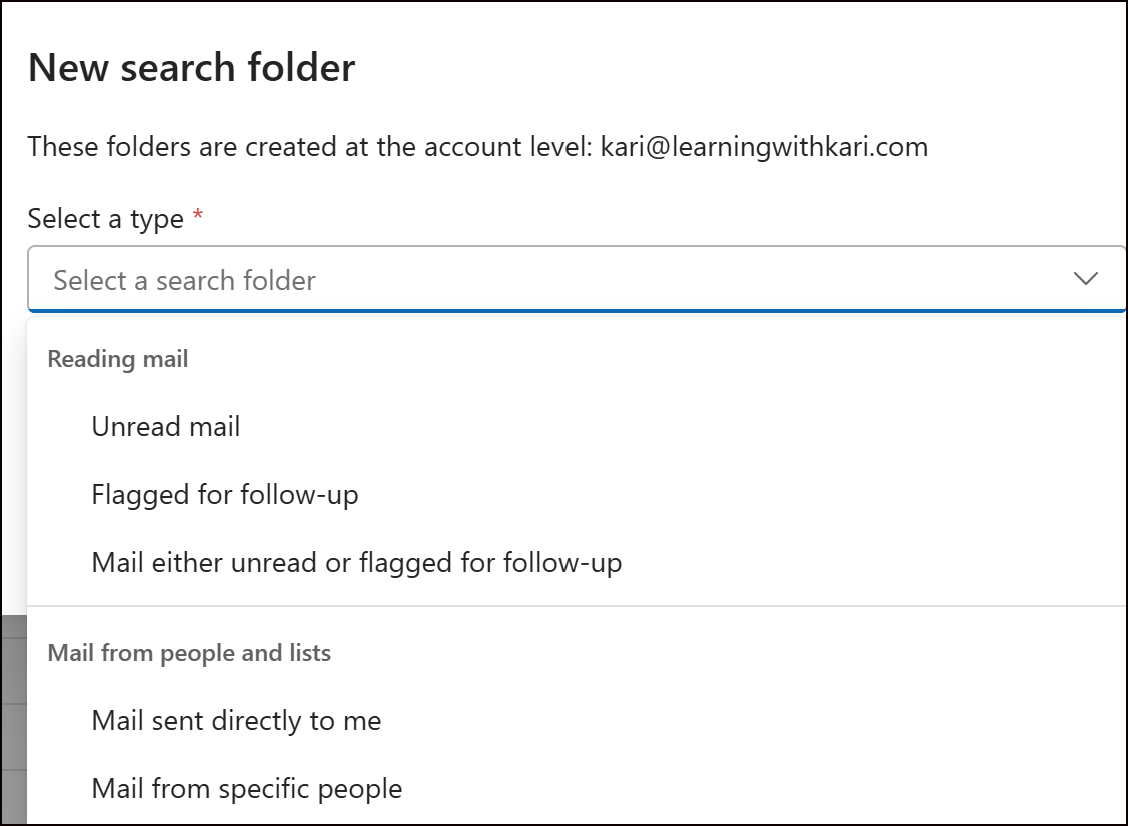
In the “New Search Folder” window, pick a preset like: - Mail from Specific People (e.g., your boss).
- Mail with Specific Words (e.g., “invoice”).
🌟 Bonus Tip: Pin Search Folders to Favorites for Instant Access!
Love your new Dynamic Search Folders but scrolling to find them in the Folder Pane? Pin them to Favorites for one-click access! Here’s how to keep your VIP emails or urgent messages at the top:
How to Add Search Folders to Favorites in Outlook
- Find Your Search Folder
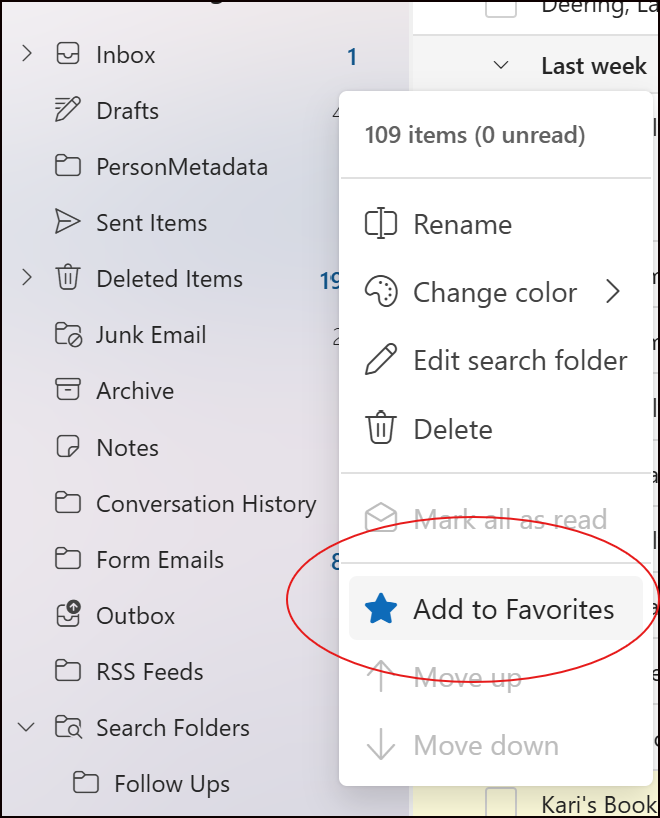
In the Folder Pane (left side), spot your Search Folder (e.g., “VIP Emails” or “Urgent”). - Add to Favorites
Right-click the Search Folder > select Add to Favorites. It’s now pinned at the top!
- Rearrange or Remove
Click and drag in Favorites to reorder. To unpin, right-click > Remove from Favorites.
Why You’ll Love It:
- 🎯 No scrolling! Jump to key emails instantly.
- 🚀 Lightning fast! Favorites keeps your inbox organized on autopilot.
View the Tip Online
You can always find them on my website, under tips and tricks. https://www.learningwithkari.com/blog
https://www.learningwithkari.com/blog/TipsandTricks112
📅 Sneak Peek: Next Week’s Tip!
Got dates to track in Excel? Next week’s Kari’s Tip #113 reveals a lightning-fast trick and my personal favorite keyboard shortcut! 🚀 Stay tuned to save time! 😎
Share with your friends and colleagues!
We hope you find these tips helpful. If so - please share them with your friends so they can sign up too!
I’d love to hear from you. What do you think of this week’s tip? Got a Teams trick to share or a topic you want me to cover? Just REPLY—I want to connect with you and make this newsletter your go-to for productivity!
See ya next time,
Kari Hoien, M.A. in Education Technology
Microsoft Office Expert Trainer and Consultant
PS 🌟 Bonus Tip: Schedule Texts to Send Later on iPhone! 📱
My college-age son taught me this iPhone gem, and it’s a lifesaver! With iOS 18, you can schedule texts to send later—perfect for birthdays or reminders. Here’s how in 30 seconds:
How to Schedule a Text on iPhone
- Open Messages
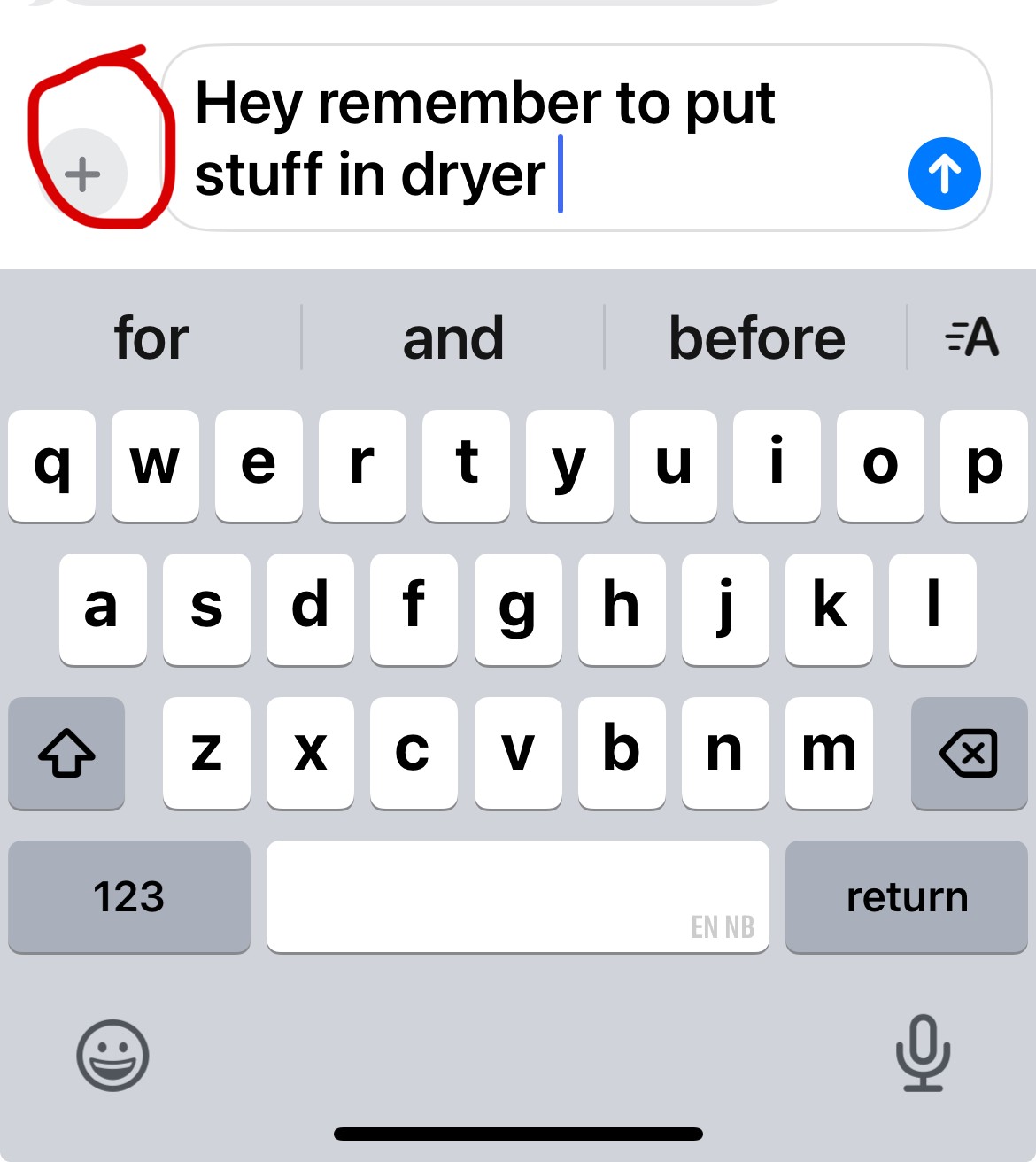
Launch Messages, pick an iMessage chat (blue bubbles). - Write Your Text
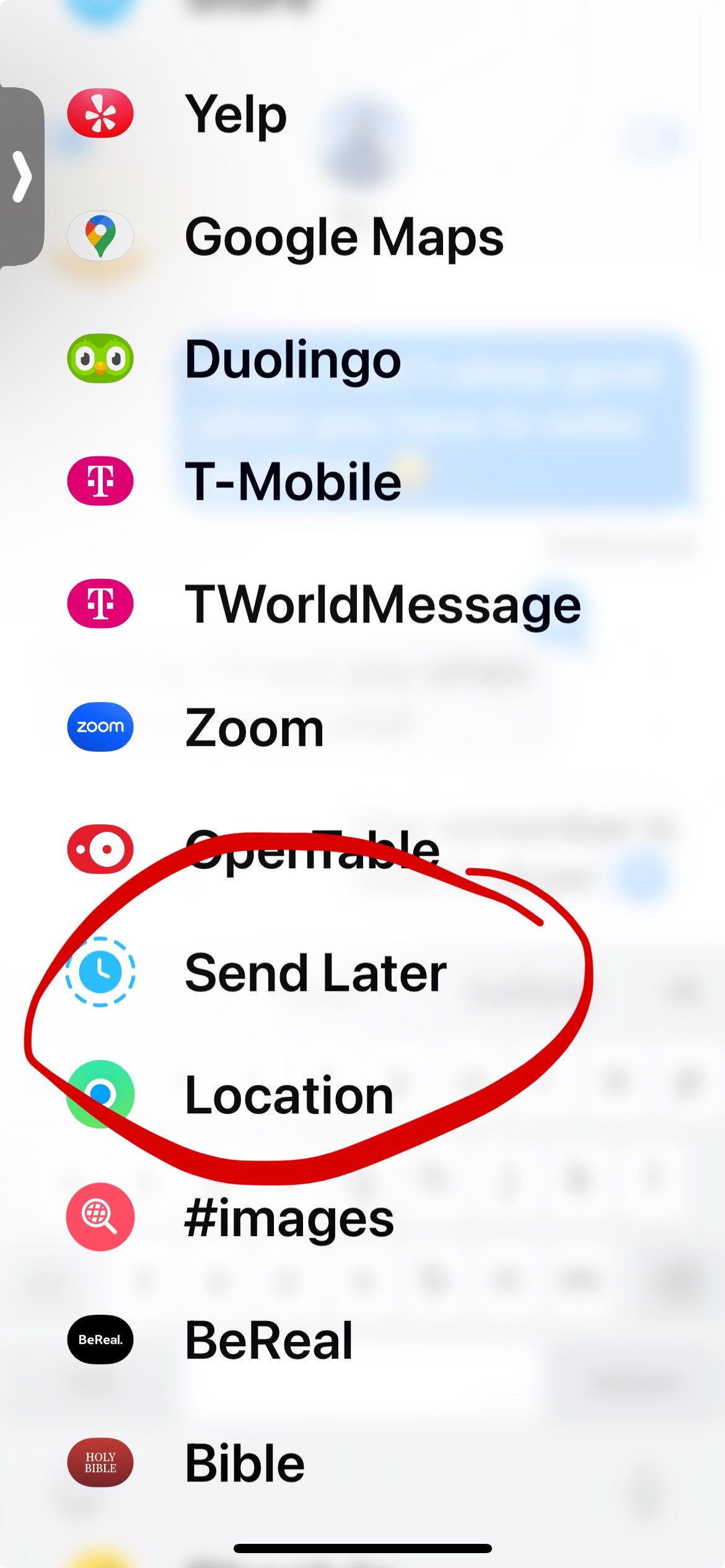
Type your message (e.g., “Happy Birthday!”). - Schedule It
Tap + > More > Send Later. Set the date/time (up to 14 days). Tap the blue arrow!
Pro Tip: Edit or Cancel
Tap Edit above the message to tweak time, send now, or delete.
Why You’ll Love It:
- 🎯 Never Forget! Time texts perfectly, like a pro.
- 🚀 Quick & Easy! No apps, just a few taps.

Responses