

HI!!
I'm shaking things up a bit. As I think about how I love to help people - technology is one way - but I also like to share personal productivity tips. So I'm going to sprinkle some of these in too. Today it's - an iPhone tip that has to do with flight tracking! Because, as you know by now, I want to help you Work Smarter - Not Harder!
As I switch things up - be sure to let me know what you like - and what you don't - just hit REPLY! Your feedback (like how some of you adore videos 🎥) helps me make this newsletter exactly what you need!
✨Custom Tabs in Teams 📁➕ and Why They're a Game Changer!
Teams is so much more than chats and meetings—it’s your ultimate work dashboard! Many of my clients tell me they’re missing out on its full potential. Today’s Kari’s Tips & Tricks #111 shows you how to create 💥 Custom Tabs ➕ for files, 📑 sites, and more in Teams. Let’s pin your go-to resources for one-click access!
🎥 Video Is Back!
You asked - I listened - videos can sure be helpful!
Here's the video for this week -Video Tip
💥Create Custom Tabs ➕ - think Spreadsheets,📊SharePoint sites📑, and more - in Teams...AND WHY?
Time to Read: ~2 min
Got a million links and files scattered across Teams? Have sites and libraries you need to always reference but it's so much clicking to get to it? Or - even remember where it is? Add a custom tab to pin your go-to resources instantly! Here’s how to Create a Custom Tab in Teams in a snap:
Why Custom Tabs in Teams?
Before we know how - this one is important to know WHY?
Teams is your all-in-one hub for collaboration, working hand-in-hand with Outlook. But let’s be real—digging through chats or folders for that one spreadsheet, SharePoint library, or presentation is a hassle. Custom tabs let you pin files, sites, or apps (like Excel or Planner) right to a Teams channel for instant access. No more clicking marathons!
Think Bulletin Board 📌
Just like pinning notes for a project, tabs keep your key resources front and center—until you’re ready to swap them out for something new.
What to Pin?
Start small! Inside your Team/Channel, think:
-
📊 A spreadsheet you’re always updating?
-
📑 A SharePoint library or site you reference daily?
-
📜 A PowerPoint or OneNote for your team?
Pick 1-2 things your team uses constantly.
How to Pin Tabs in Teams
- Open Teams and Pick Your Channel. Navigate to the Teams channel where you want your tab.
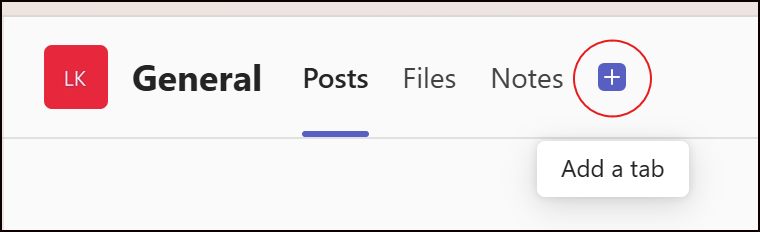
- Click the➕ to Add a Tab.
-
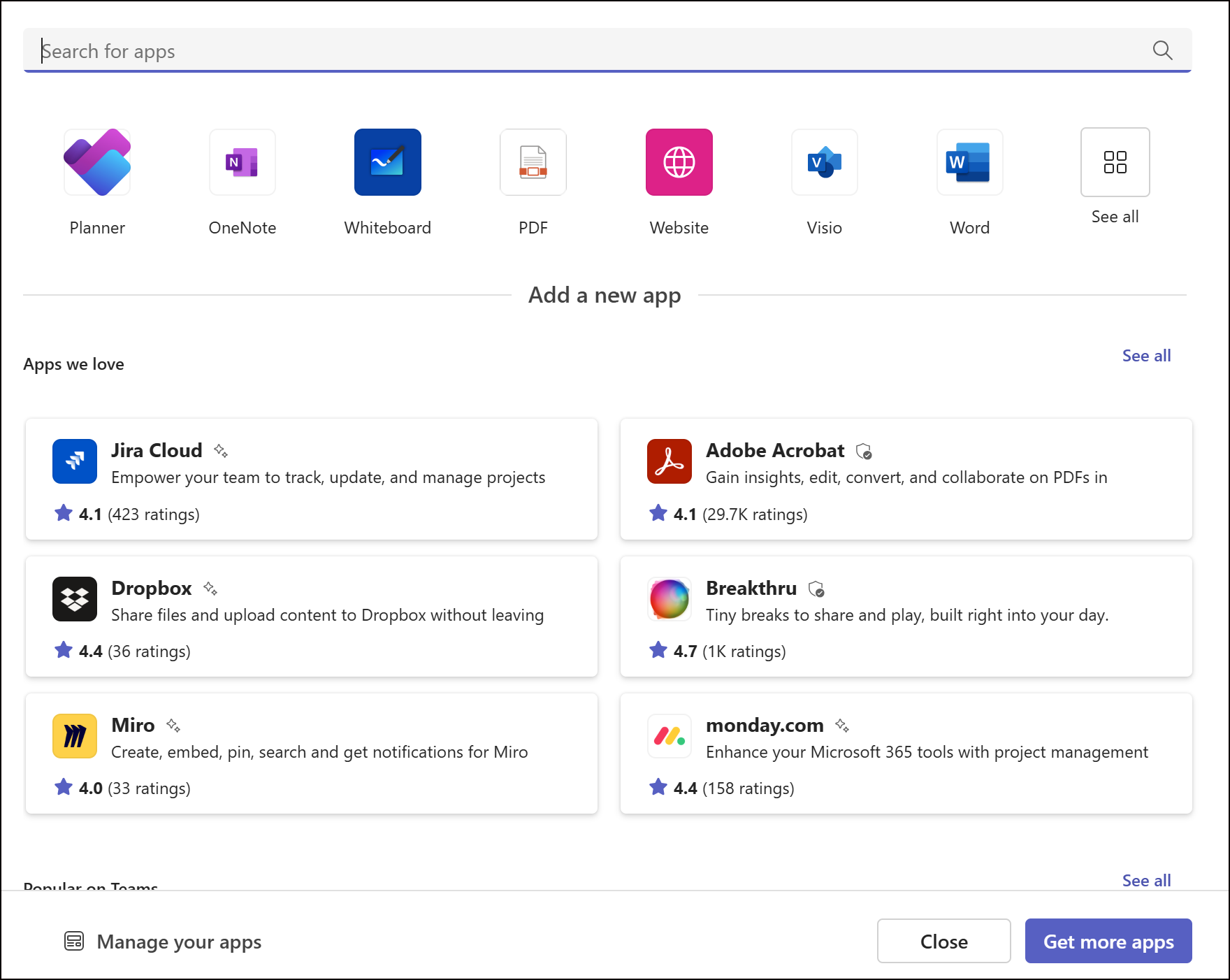
Choose your Content. In the “Add a tab” menu, select what to pin. This is the menu that shows up.
-
Excel for a spreadsheet, then browse to your file.
-
PowerPoint for a presentation, then select it.
-
SharePoint for a site or library—paste the URL or pick a library.
-
Website for any URL (e.g., an external tool).
-
Other apps like OneNote, Planner, or more—search the menu!
-
-
Name It. Give your tab a clear name (e.g., “Budget 📊” or “Docs 📑”). Add an emoji like ➕ for flair if you want!

-
Hit Save. Boom—your tab’s live!
-
Access, Edit or Remove Anytime.
Click the tab to open your file or site instantly. Need to Rename or Remove, click the drop down and choose from the menu.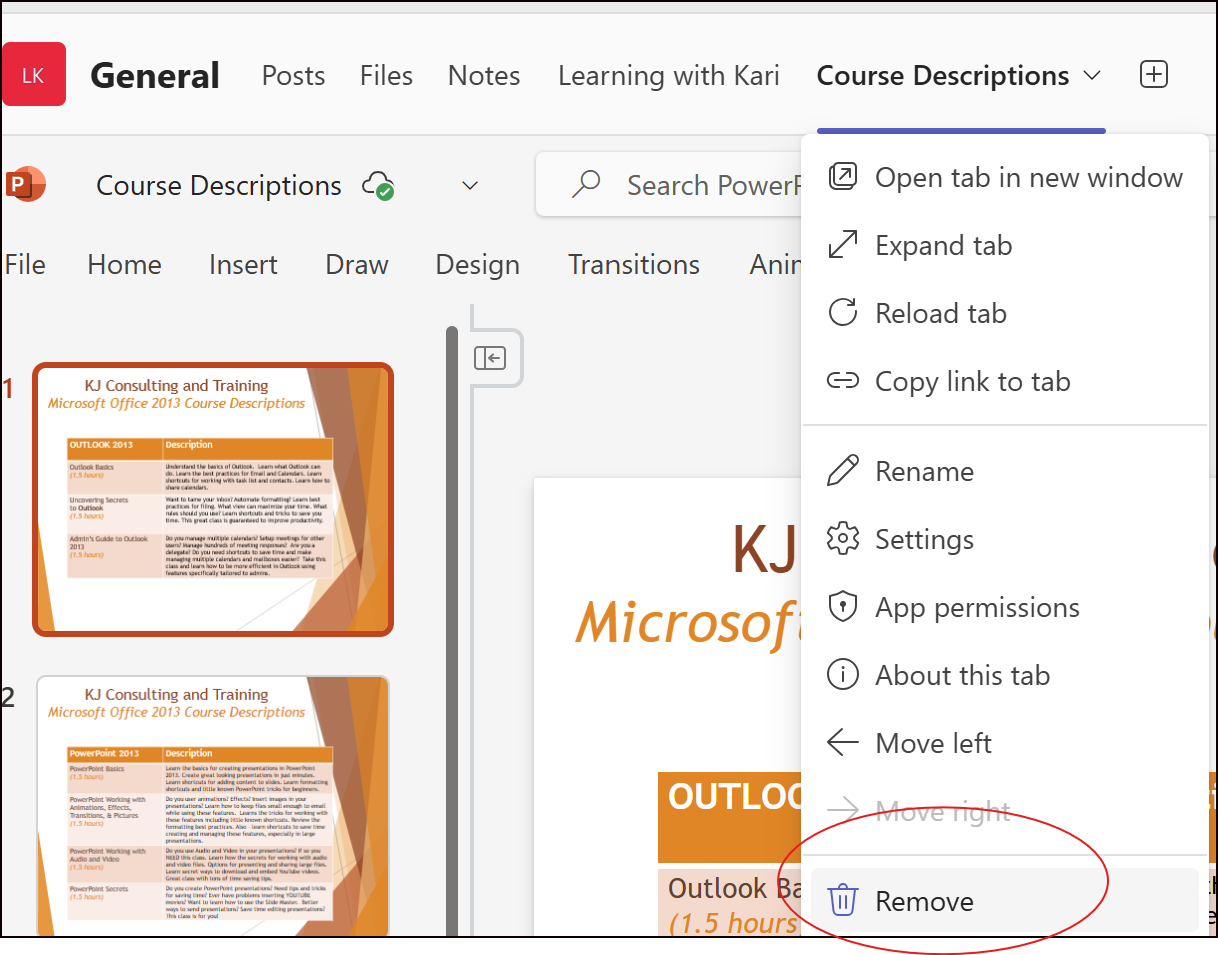
Why You’ll Love It:
🎯 Zero hunting! Access key resources in one click—perfect for busy teams.
🚀 Boosts efficiency! Keeps spreadsheets, sites, or libraries at your fingertips.
View the Tip Online
You can always find them on my website, under tips and tricks. https://www.learningwithkari.com/blog
https://www.learningwithkari.com/blog/TipsandTricks111
Next Up....
Next Week's Tips/Tricks....📥 Eliminate Filing Messages in Outlook with Dynamic Search Folders! 🔍
Share with your friends and colleagues!
We hope you find these tips helpful. If so - please share them with your friends so they can sign up too!
I’d love to hear from you. What do you think of this week’s tip? Got a Teams trick to share or a topic you want me to cover? Just REPLY—I want to connect with you and make this newsletter your go-to for productivity!
See ya next time,
Kari Hoien, M.A. in Education Technology
Microsoft Office Expert Trainer and Consultant
PS - BIG NEWS!
I’m launching a Microsoft Teams Mini-Course this month to turn you into a Teams Power User! 🚀 Plus, a comprehensive Teams course is coming soon. Stay tuned for details!

Responses