

HI!!
I love finding things that will save you time and help you do your job better! As you know by now, my mantra is Work Smarter - Not Harder!
Just a reminder, I love to hear from all of you - please continue to let me know ideas you have for tips or if you just want to tell me how the format is working for you....just hit REPLY!
🆘Drowning in Rows and Columns 📊?
I've got another great tip! Odds are, if you use Excel, there's been times you need to make some of the extra rows and columns just go away - but hiding isn't always an option - this is better for groups of columns and rows!! Today's tip is using Excel's Grouping feature. Kari's Tips and Tricks #110: Hide Spreadsheet 📊Clutter in Excel with One Click 🖱️.

Video?
I'm trying something new this month - I'm going to to only include the steps and screenshots, not the videos. If you love the video and want it - let me know....
Hide Spreadsheet Clutter in One Click
Time to Read: ~2 min
Got a chaotic Excel sheet drowning in rows and columns? Collapse them instantly to reclaim your sanity! Here's how to Group and hide clutter in one click:
How Grouping in Excel Works
This feature has been around and there are different applications but at it's core - it allows you to quickly group and hide rows and/or columns in one click.
How to Group Rows (or Columns)
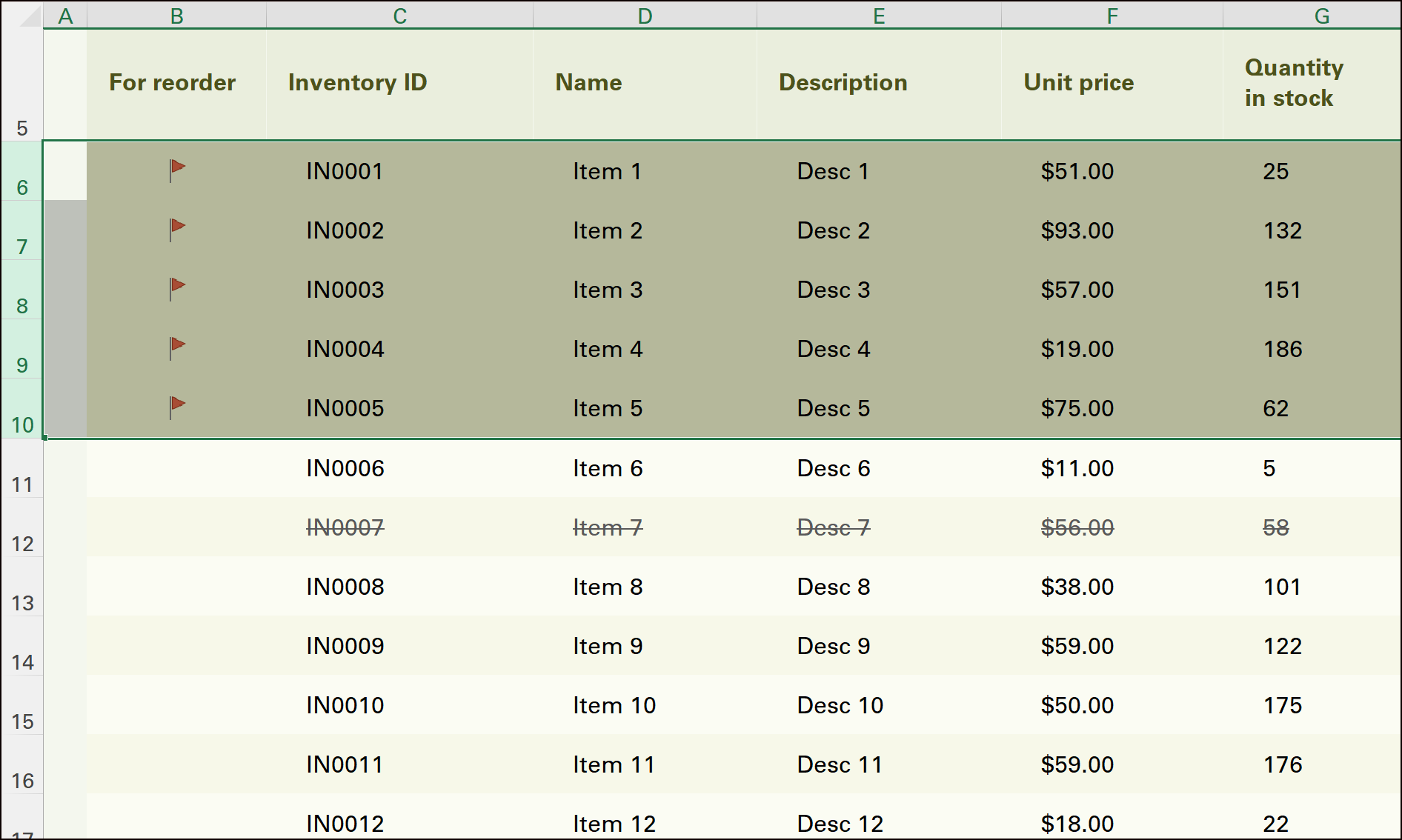
- Open your spreadsheet in Excel and decide what rows or columns you'd like to hide (group).
-
Highlight the rows or columns you want to tuck away—like old sales data, certain inventory data or project details (e.g., rows 6-10).
-
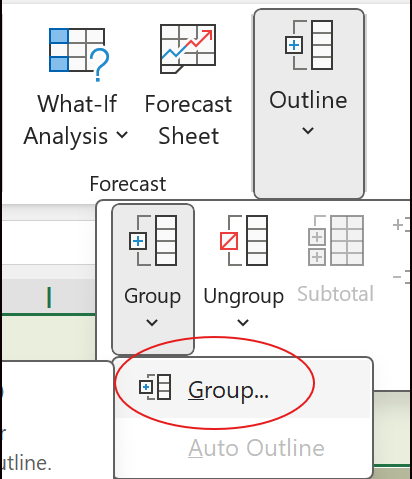
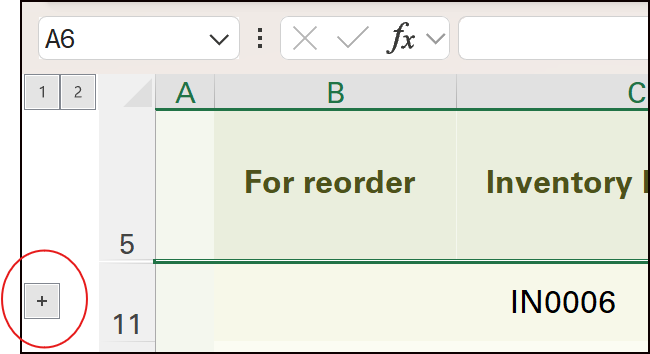
Go to the Data tab > Group (or right-click>Group or use Shift + Alt + 🡆 ), then hit OK. Boom—those rows shrink to a tiny “+” button!
-
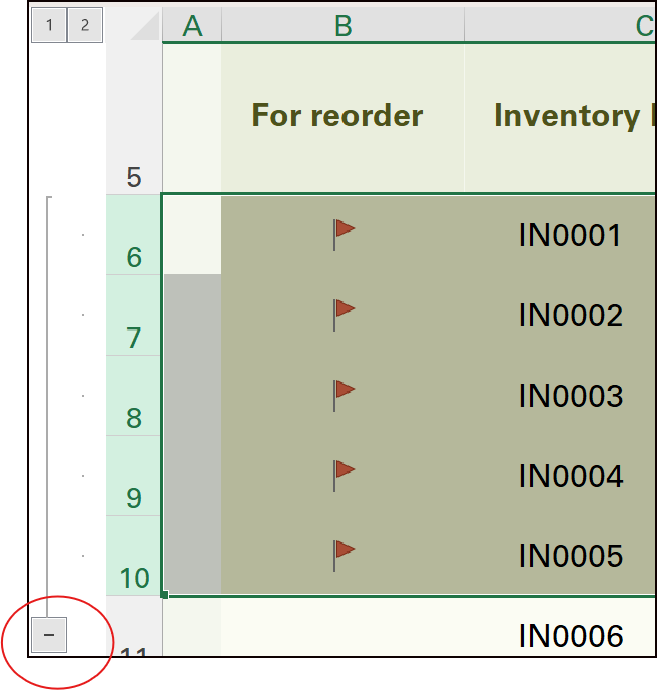
Click “+” to expand when you need them, or “-” to collapse again—total control in seconds. And it stays there until you Ungroup it (same menu).
-
Ungroup fast with Shift + Alt + Left Arrow—no menu digging required.
Why You’ll Love It:
🎯 Keeps your focus on key data—no more scrolling through chaos!
🧹 Tames messy sheets—perfect for polished presentations or quick analysis.
View the Tip Online
You can always find them on my website, under tips and tricks. https://www.learningwithkari.com/blog
https://www.learningwithkari.com/blog/TipsandTricks110

Next Up....
Next Week's Tips/Tricks....🚀 Tired of digging for things in Teams, a project tracker, a shared file you open everyday? 🔍 Add it as a Custom Tab in Teams—one click, no hunting! ➕📁
Share with your friends and colleagues!
We hope you find these tips helpful. If so - please share them with your friends so they can sign up too!
But that's not all! Coming soon...I'm launching a comprehensive course on Microsoft Teams, designed to help you become a Teams Power User. Stay tuned for more details!
I'd love to hear your thoughts on this week's topic. Do you have any Microsoft Teams tips to share? Or perhaps there's a topic you'd like me to cover in the future? Reply to the email and let me know!
See ya next time,
Kari Hoien, M.A. in Education Technology
Microsoft Office Expert Trainer and Consultant

Responses