

HI!!
I hope you're enjoying my Tips & Tricks! I love finding things that will save you time and help you do your job better! My mantra - Work Smarter - Not Harder!
I love to hear from you - please continue to let me know ideas you have for tips or if you just want to tell me how the format is working for you....just hit REPLY!
I've got another great trick! Today's trick is about 2 Ways to Save Time Writing Emails and I'm not talking about Chat GPT or Copilot so here we are with Kari's Tips and Tricks #108: 📩 Write Emails Faster- 2 Simple Time-Saving Tricks!

How Do YOU Like to Learn?
Since I'm in the business of learning - there are always (at least) 2 ways you can learn this tip #1 - Read the step by steps with screenshots or #2 - watch the video (or #3 - both 😊)
Tricks to Save Time Writing Emails
Most people are going to think we're referring to AI but that is not what today's tips and tricks are about. Although using AI to draft complex emails is a GREAT strategy as well. On average, professionals spend 30 minutes drafting more complex emails like proposals or in-depth responses and most professionals draft a few of these per week. Just think if we were able to cut this time down how much time you could save?!?!
I've got 2 tricks for you to try!!
Trick #1: My Templates (formerly Quick Parts)
Why do I want to Use My Templates and How Can it Save Me Time?
My Templates (formerly Quick Parts) allows you to Save commonly used chunks of text and/or graphics/pics so you can re-use them and not have to find them to copy or re-type them.
Most of us have phrases or paragraphs of text we use over and over in emails. This could be a short bio about us, a summary of what our organization does or a product it sells, a response to a frequently received email etc.
New or Old Version of Outlook
If you're using the NEW Outlook, you will have access to the new feature, My Templates. It's not a full on email template like it sounds, but rather something you can insert into your emails. In the prior ("old") verision of Outlook if you are still using that, it's a feature called Quick Parts that works very similarly.
New Outlook
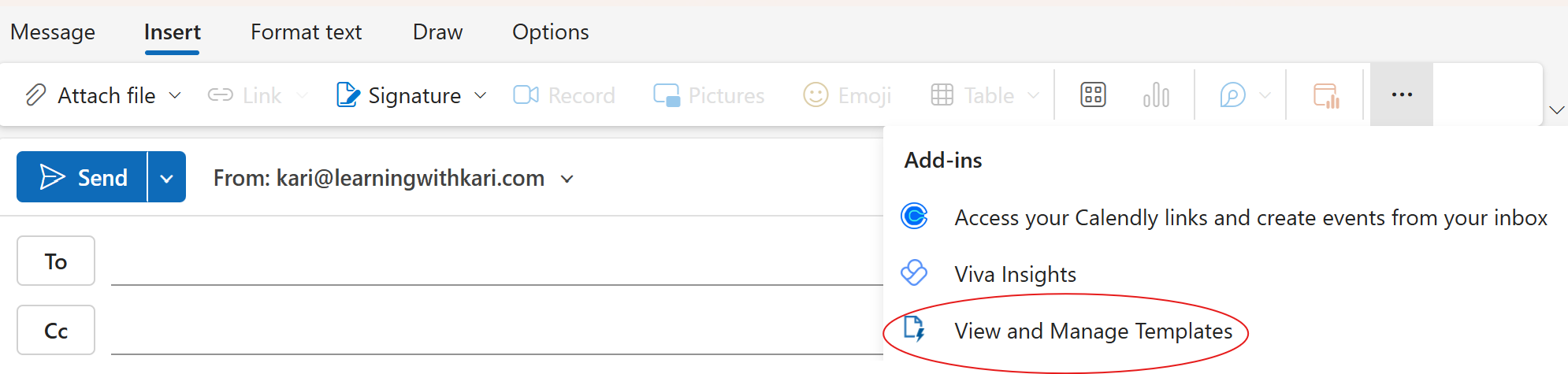
Once you use it, it will show up on your Insert ribbon. Otherwise it might be hidden.

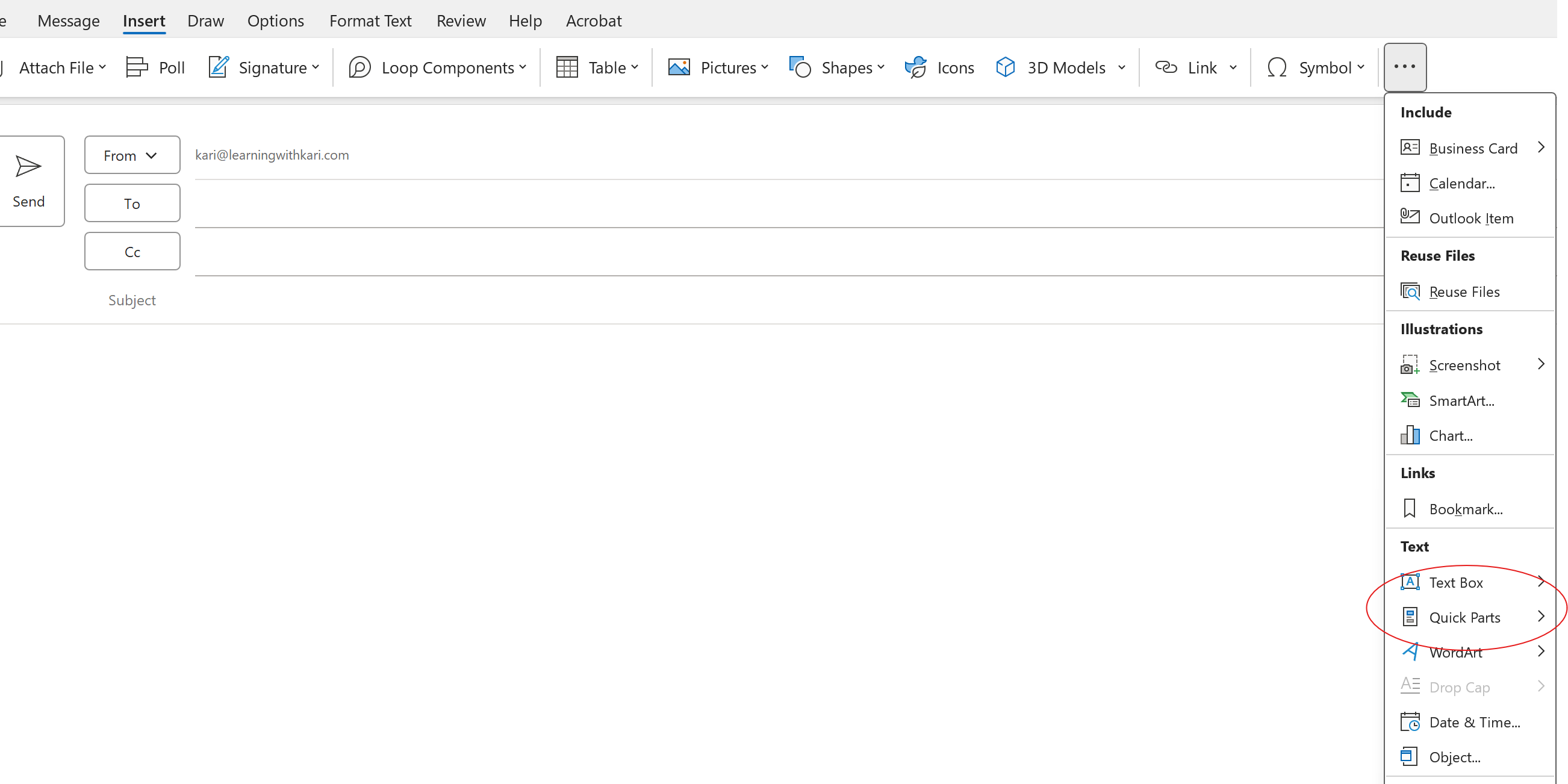
Prior Version of Outlook
How to Use Templates (New Version of Outlook)
- Create or select text and copy it.
- In a new email, click on the Template button and you will see the pane show up on the right side of your screen.

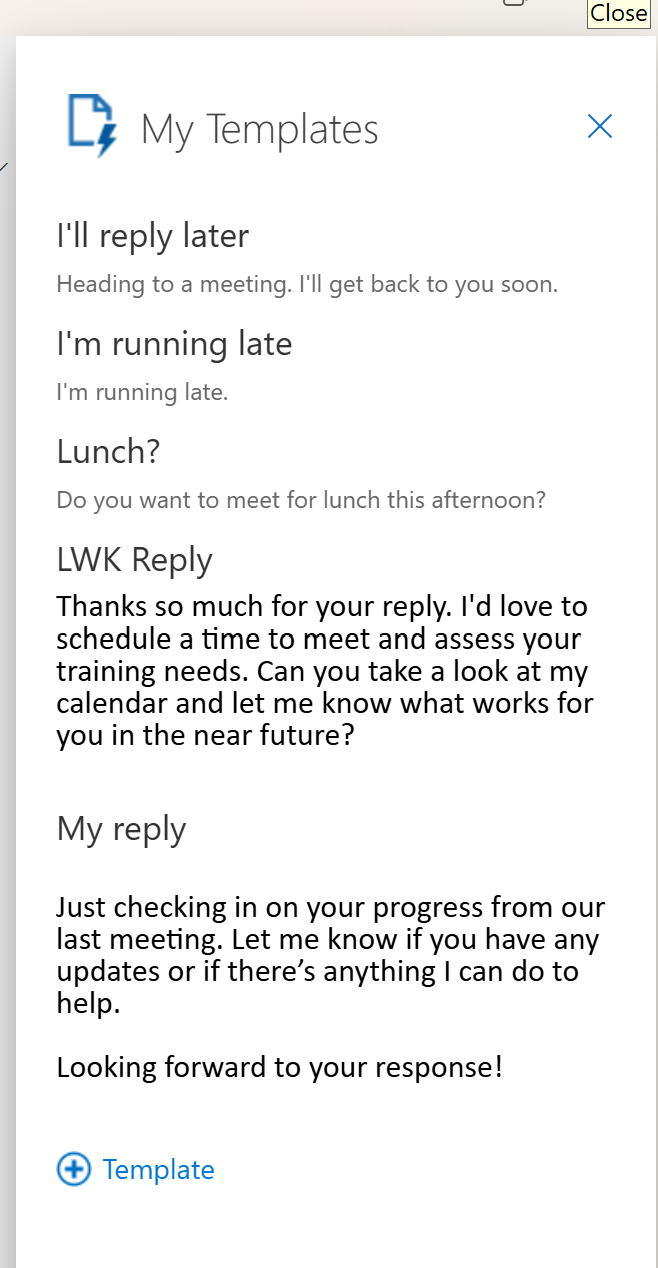
- Click the + Template button and name the template (my reply) and paste the text/images to be used and click Save.
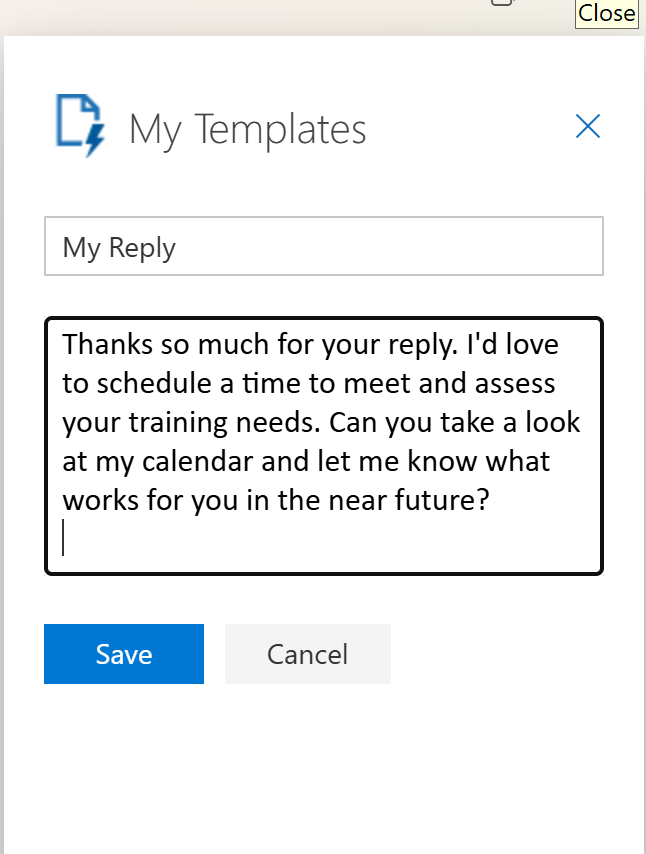
- At any point while composing an email (new or reply) you can click on the templates to insert them into your email.
Example of How to Use:
- Save a 2-sentence bio: “I’m Kari, a Microsoft 365 trainer helping professionals work smarter. Visit LearningwithKari.com for more tips!”
- Store a product pitch: “Our widget boosts productivity by 20%—ask me for a demo!”
- Keep a more lengthy, standard reply: “Thanks for reaching out! Let me tell you about what we offer.....I’ll get back to you by EOD with details......”
Trick #2: Record
Why do I want to Use My Templates and How Can it Save Me Time?
Simple! Sometimes you can say it faster (and better) than you can type it!
I don't know about you - but some days I can't type - and sometimes, I need to say it out loud or it's just faster to say it, than type it.
How to Use Templates (New Version of Outlook)
- Open a new email or reply to an existing email.
- On the Message tab on the ribbon, click the Microphone icon.
- Start talking, and it will dictate for you.
Example of How to Use:
- Draft a quick thank-you: “Hi John, thanks for the update, looks great, let’s chat tomorrow.”
- Outline a meeting recap: “Team, here’s what we covered: budget approved, next steps due Friday.”
- Voice a polite decline: “Hi Todd, I appreciate the invite, but I’m booked this week.”
Why You’ll Love It: Saves TONS of time creating and drafting email replies.
Watch the Tip (5 minutes)
Click on the link below to watch the video. I've heard from a few users (thanks Sarah) that sometimes the links are being stripped out of my tips. you can always find them on my website, under tips and tricks. https://www.learningwithkari.com/blog
https://www.learningwithkari.com/blog/TipsandTricks108
Next Up....
Next Week's Tips/Tricks....Tame Your Inbox with 1 Tip
Share with your friends and colleagues!
We hope you find these tips helpful. If so - please share them with your friends so they can sign up too!
But that's not all! Coming soon...I'm launching a comprehensive course on Microsoft Teams, designed to help you become a Teams Power User. Stay tuned for more details!
I'd love to hear your thoughts on this week's topic. Do you have any Microsoft Teams tips to share? Or perhaps there's a topic you'd like me to cover in the future? Reply to the email and let me know!
See ya next time,
Kari Hoien, M.A. in Education Technology
Microsoft Office Expert Trainer and Consultant
PS - Did you know about my Excel and Outlook courses - you can view them here https://www.learningwithkari.com/store more coming soon!!

Responses