

HI!!
I hope you're enjoying my Tips & Tricks! I love finding things that will save you time and help you do your job better! My mantra - Work Smarter - Not Harder!
I love to hear from you - please continue to let me know ideas you have for tips or if you just want to tell me how the format is working for you....just hit REPLY!
I've got another great trick! Today's trick is about Copilot so here we are with Kari's Tips and Tricks #107: What is Copilot?
How Do YOU Like to Learn?
Since I'm in the business of learning - there are always 2 ways you can learn this tip #1 - Read the step by steps with screenshots or #2 - watch the video (or #3 - both 😊)
Confused by Copilot? You're not alone!
I'm sure you've noticed that copilot is everywhere in Microsoft right now. If you're like me - you know it's AI but not exactly sure how it's different than the other tools and how can it help you? We're not going to do a deep dive here yet, but one of the first things you need to know is that there is a FREE and a LICENSED(paid) version.
Free vs. Licensed
First off, if you haven't looked too much into it yet, you may not even know this but there is a free and licensed version of Copilot.
FREE VERSION - The free version of Copilot is a chat. It's similar to other AI chat apps you've likely used like Chat GPT or GROK. Copilot is considered the most robust free access to AI, but it does have a Microsoft lens. It can also be accessed at https://copilot.microsoft.com/
PAID VERSION - The paid version of Copilot is fully integrated into your M365 apps. There are multiple types of subscriptions available which I won't get into.
Which Version Do You Have?
PAID Version (subscription)
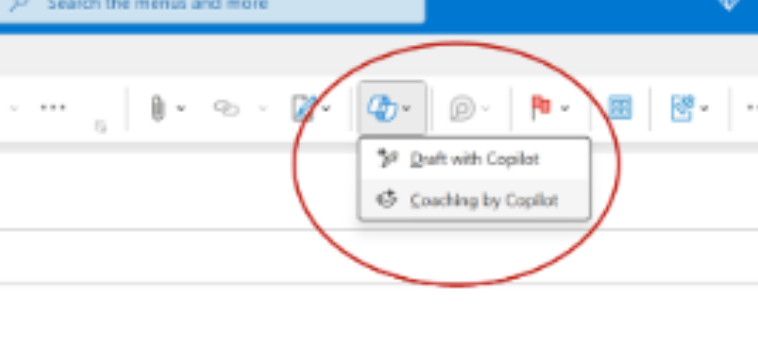
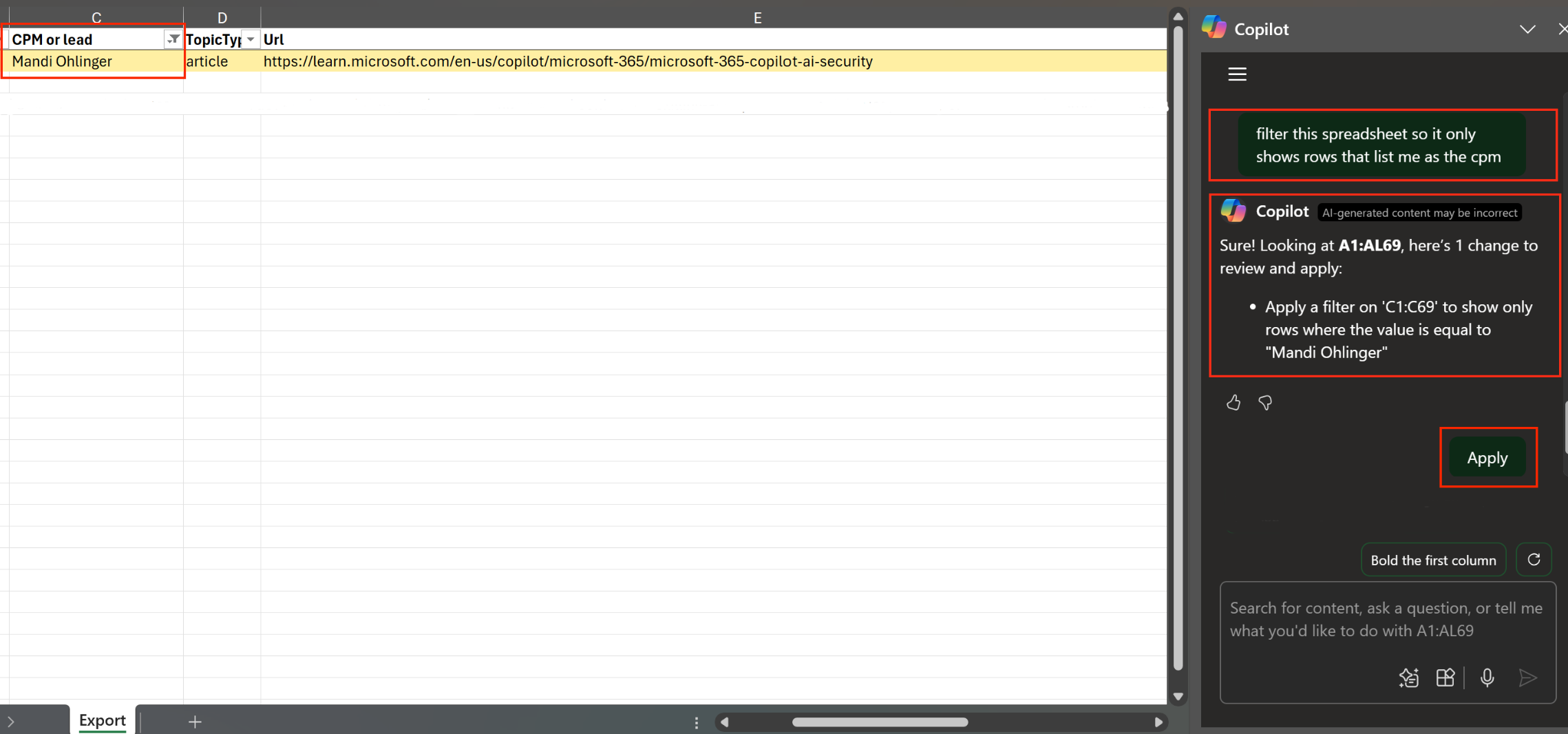
There will be a button on your ribbon and you will see it lurking in other parts of your apps. It can also be installed as a separate app.
On your ribbon of your M365 apps it will look similar to this.
In Excel it might look like this.
FREE Version
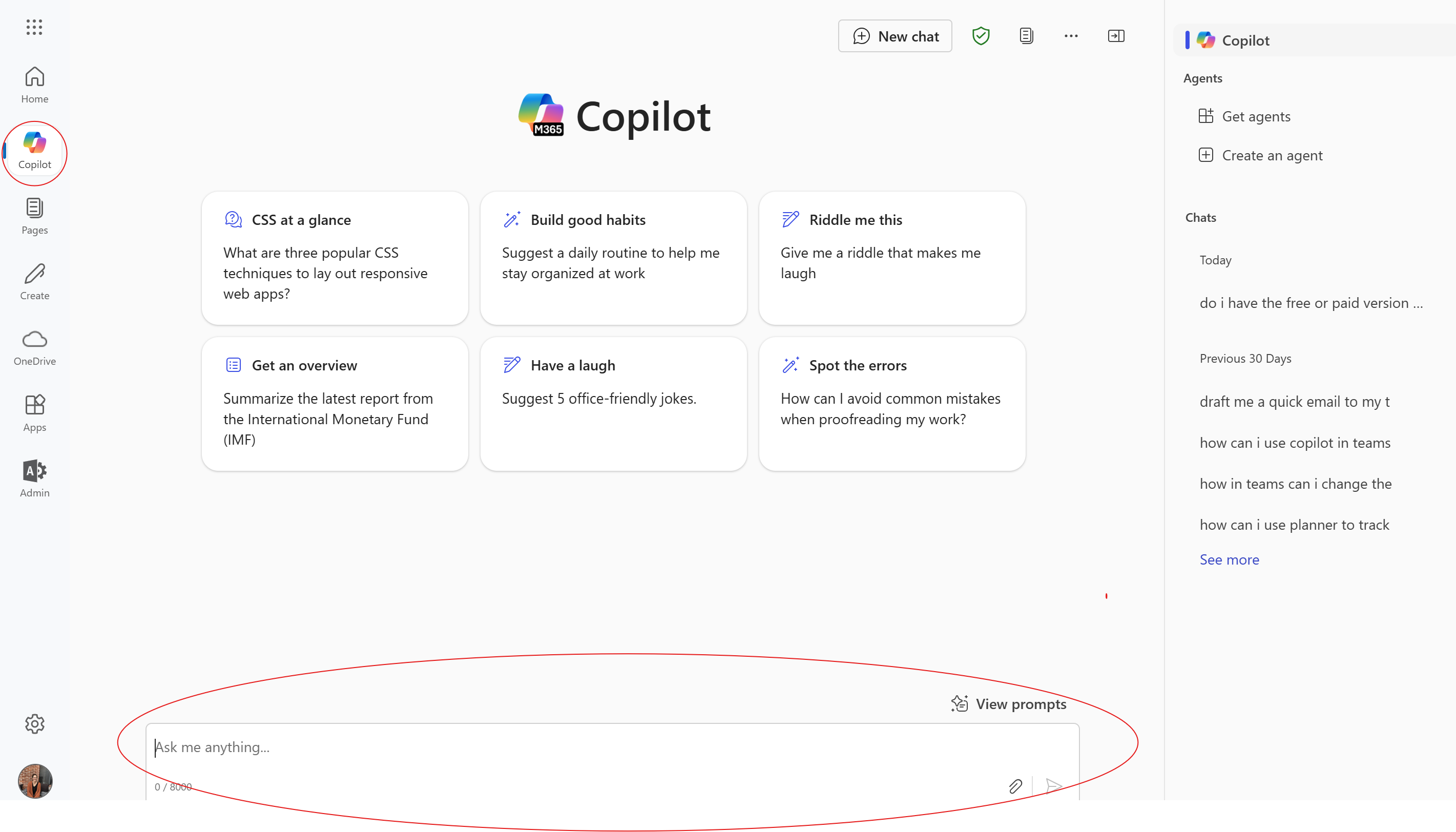
If you have the free version, when you log into your M365, you will see the Copilot icon and it will be more of a chat interface.
How to Use It (Free Version)
- Open up M365 in your browser or go directly to Copilot (https://copilot.microsoft.com)
- Enter in what you'd like it to do. The more context you give it, the better.
Examples:
- Draft a polite email response to a client delay complaint.
Tip: Copy first the complaint email and paste it into the chat for reference. - Suggest 5 Excel formulas to analyze sales data.
Tip: Give specific context for what you're looking - Create a flow chart with blue shades for the following process: Idea - Concept - Create - Approve - Finalize.
Tip: The more detail you give it - the less revisions you'll need. - Recap my Teams meeting/Summarize a long email or document.
Tip: Copy and paste the transcript/email/document into copilot.
Why You’ll Love It: Saves TONS of time for redundant tasks.
Watch the Tip (2 minutes)
Click on the link below to watch the video. I've heard from a few users (thanks Sarah) that sometimes the links are being stripped out of my tips. you can always find them on my website, under tips and tricks. https://www.learningwithkari.com/blog
https://www.learningwithkari.com/blog/TipsandTricks107

Next Up....
Next Week's Tips/Tricks....Tricks to Save Time Writing Emails
Share with your friends and colleagues!
We hope you find these tips helpful. If so - please share them with your friends so they can sign up too!
But that's not all! Coming soon...I'm launching a comprehensive course on Microsoft Teams, designed to help you become a Teams Power User. Stay tuned for more details!
I'd love to hear your thoughts on this week's topic. Do you have any Microsoft Teams tips to share? Or perhaps there's a topic you'd like me to cover in the future? Reply to the email and let me know!
Until next time,
Kari Hoien, M.A. in Education Technology
Microsoft Office Expert Trainer and Consultant
PS - Did you know about my Excel and Outlook courses - you can view them here https://www.learningwithkari.com/store more coming soon!!

Responses