

Hi!
I hope you're enjoying the Teams Tips & Tricks! If you have any feedback or if you just want to tell me how the format is working for you....just hit REPLY!
As we are diving back into Microsoft Teams, as promised, another tip this time looking at channels, so here we are with Kari's Tips and Tricks #105: How to Retire a Team.

How Do YOU Like to Learn?
Since I'm in the business of learning - there are always 2 ways you can learn this tip #1 - Read the step by steps with screenshots or #2 - watch the video (or #3 - both 😊)
How to Retire a Team
Teams are meant to be fluid and not necessarily all permanent. Although you will likely have the long-standing teams like your department teams, you will likely have some teams that run their course. What do you do when you have a team you no longer need anymore? Maybe it's a project, maybe it's a conference that's over or something that's no longer relevant. You have some choices when you want to retire a team.
You have 3 choices.
- Hide the team.You can keep the team if you think you may want to refer back to it or it may be relevant again, in that case you can Hide it.
- Archive the team. In the case where you don't need it anymore, you can archive it. You can still get it back if you need, but it's not just hidden, it would need to be restored.
- Delete the team. If you don't ever need access to it again, you should delete it. If you delete it, it's gone once it's out of the deleted items folder.
1. Hide a Team
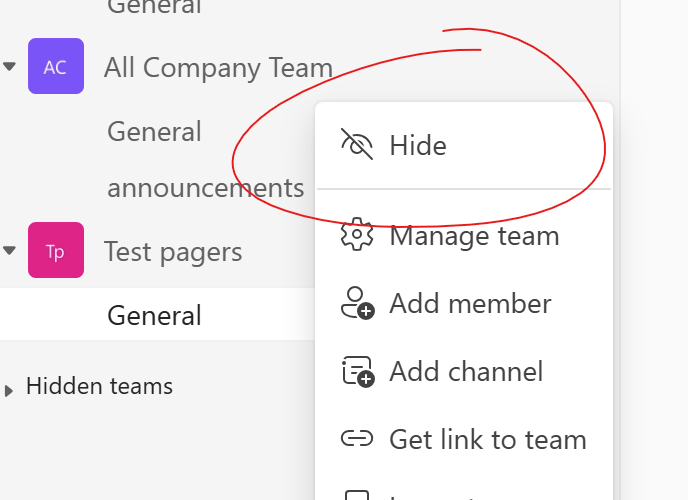
When you hide a team, it's only for you. Others can keep the team active and nothing changes as far as the team status.
- Select the team and click the ... next to the team and select Hide from the menu.
2. Archive a Team
If you archive a team, you are doing it for all members. You have to be an owner. The team's status changes to Archived, it's temporarily available inside Hidden teams located at the bottom of the teams list, and a small icon representing the archived state is added next to it. After you archive a team, you have the option to restore it. Once it is removed from Hidden teams it is available in the Manage teams view under Archived. To view and search through the content of the archived team, select its name in the Archived list.
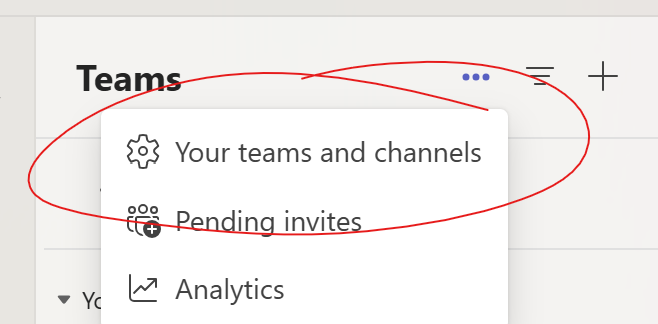
- Select the ... next to Teams in the top of the screen, and click Your teams and channels.
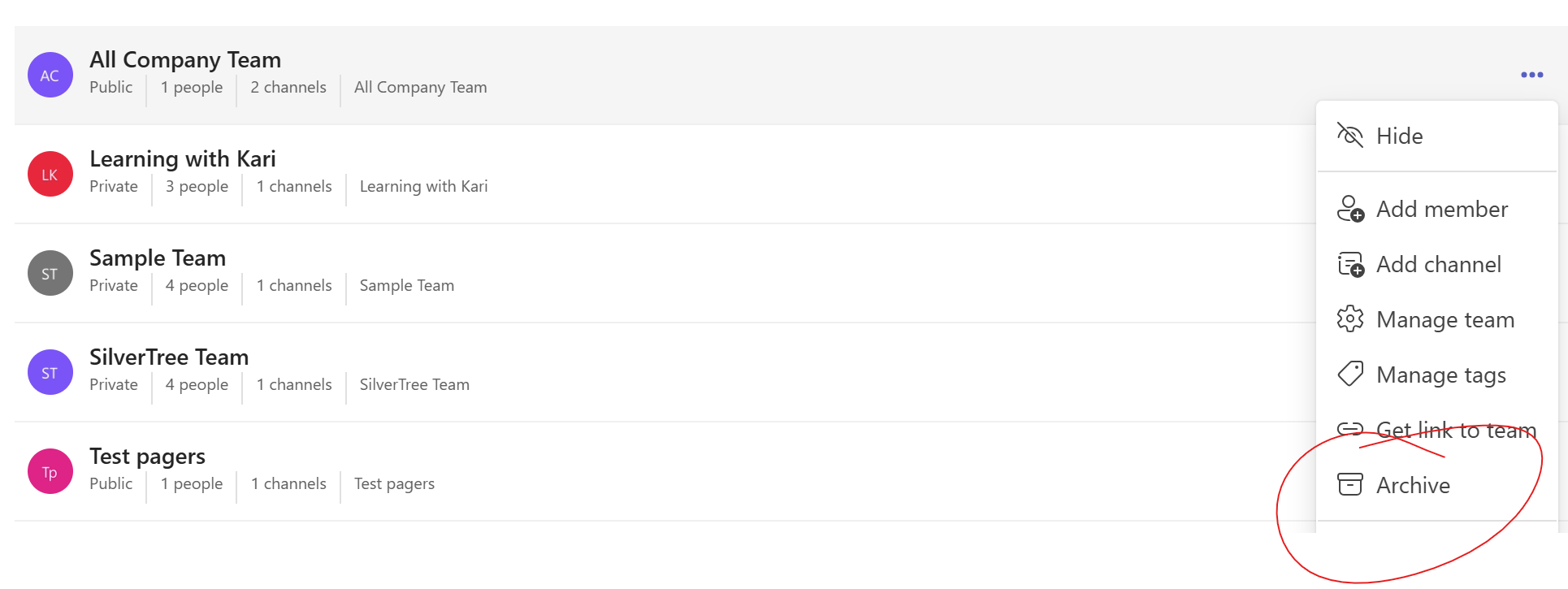
- All your teams will show up, select the ... next to the team you want to archive. Select Archive from the list.
- You will be prompted to archive the the team and choose if you want the SharePoint site to be read-only for team members.

3. Delete a Team
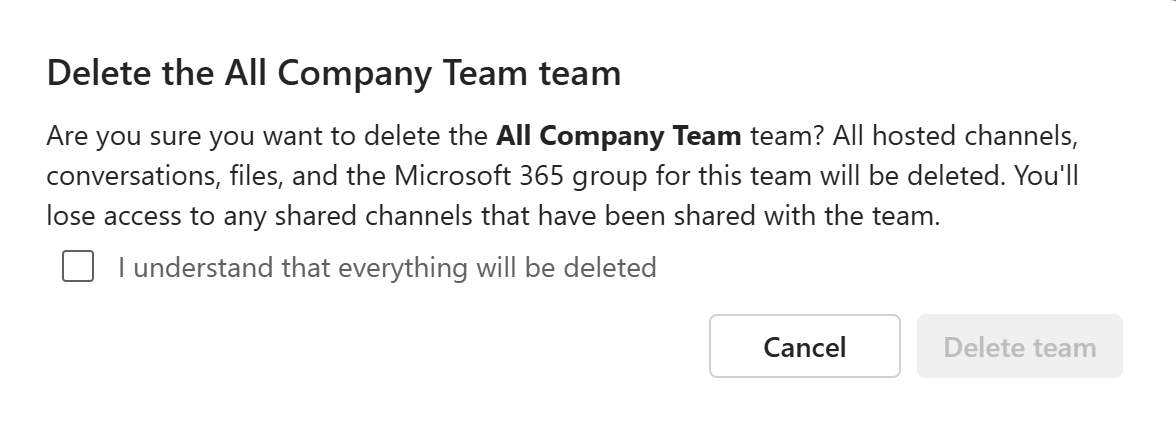
If you delete a team, it will be gone for everyone. You have to be an owner or an admin to delete the team.
- Click on the ... next to the team you want to delete.
- You will be prompted with a warning window to confirm everything will be deleted.
Watch the Tip (2 minutes)
Click on the link below to watch the video.

https://www.learningwithkari.com/blog/TipsandTricks105
For more information on archiving and deleting you can find it on Microsoft Learn site.
Next Up....
Next Tips/Tricks....Hyperlink Tricks
Share with friends and colleagues!
We hope you find these tips helpful. If so - please share them with your friends so they can sign up too!
But that's not all! Coming soon...I'm launching a comprehensive course on Microsoft Teams, designed to help you become a Teams Power User. Stay tuned for more details!
I'd love to hear your thoughts on this week's topic. Do you have any Microsoft Teams tips to share? Or perhaps there's a topic you'd like me to cover in the future? Reply to the email and let me know!
Until next time,
Kari Hoien, M.A. in Education Technology
Microsoft Office Expert Trainer and Consultant

Responses