

Hello there,
I hope you're enjoying the Teams Tips & Tricks! If you have any feedback or if you just want to tell me how the format is working for you....just hit REPLY!
As we are diving back into Microsoft Teams, as promised, another tip when you're using chat so here we are with Kari's Tips and Tricks #102: The Shared Tab in Teams Chat.

How Do YOU Like to Learn?
Since I'm in the business of learning - there are always 2 ways you can learn this tip #1 - Read the step by steps with screenshots or #2 - watch the video (or #3 - both 😊)
Teams Chat Tab Changes from Files to Shared
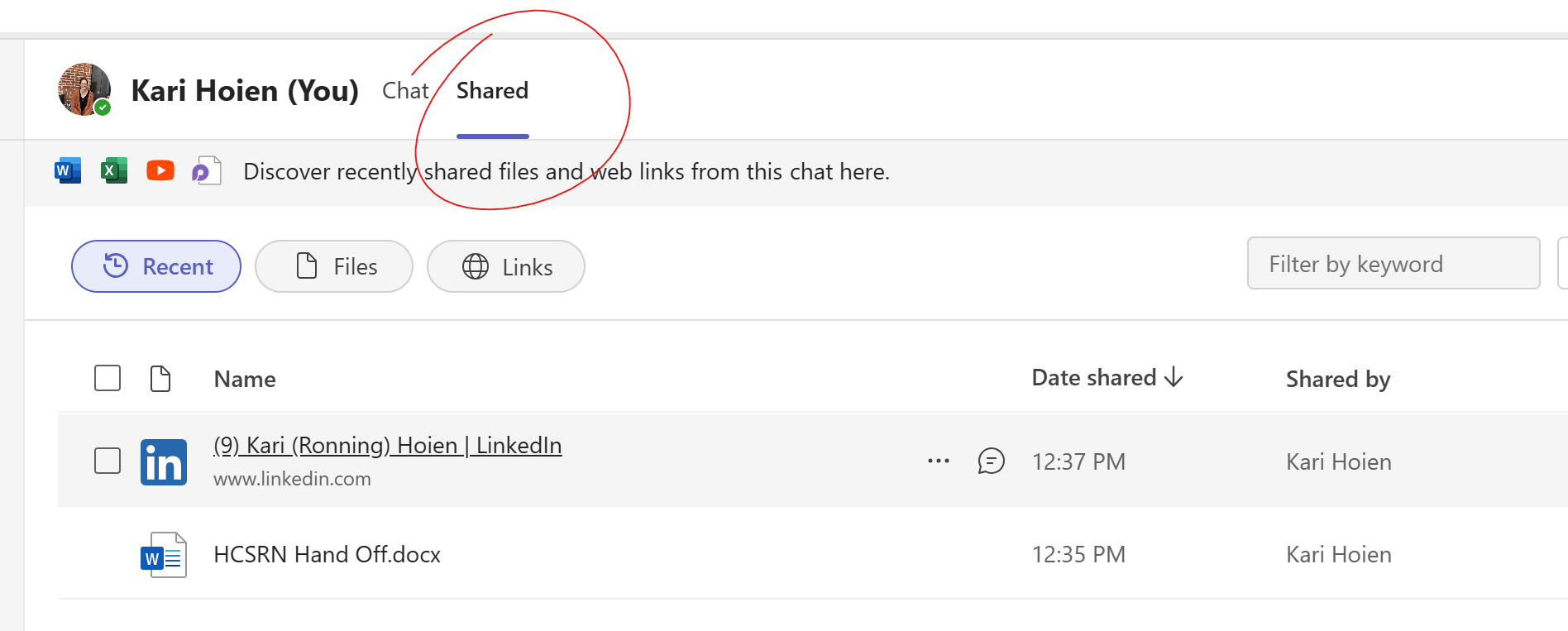
In a chat, there used to be a Files tab which showed you the shared files. This has been renamed to the Shared tab. It now includes any file that has been shared but also includes any links (which is SUPER helpful). As I noted last week, the longer you have used Teams, the longer your chats are - so any easy way to find things is a TIME SAVER!
Shared Tab
1. Select any chat.
2. Click on the Shared tab. It shows all the files and links shared in your chat as well as who shared them and the date they were shared. Additionally, (especially if the list is long) you can filter by files, recent or links. It is also searchable using Filter by keywords.
3. When you select a file or link, you will see a ribbon with additional opens like, Copy link, Download, or Open.
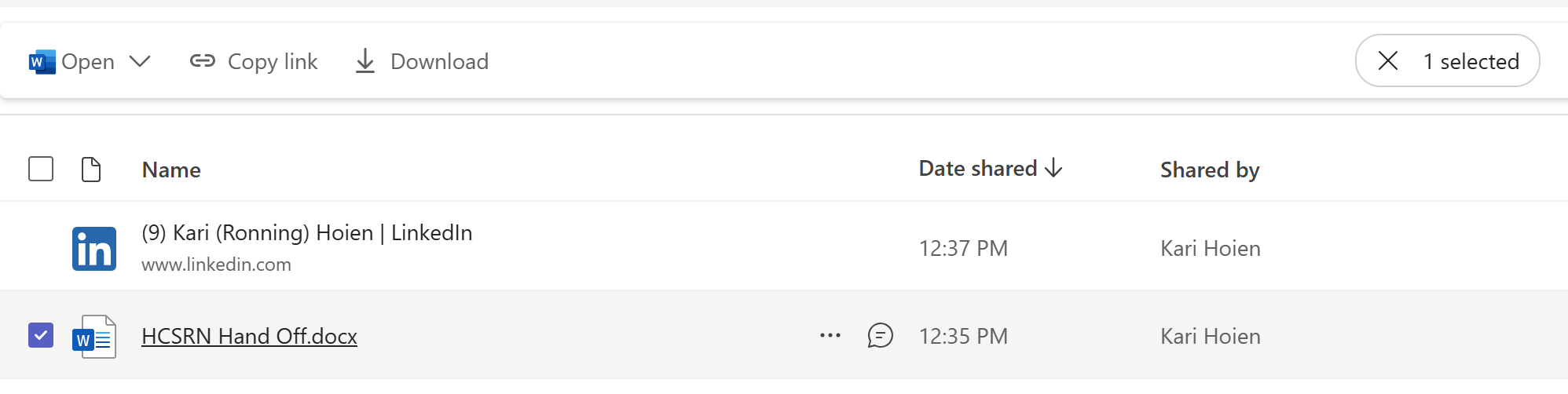
4. You could also hover over the chat bubble and click to go back to that spot in the chat.

Watch the Tip (2 minutes)
Click on the link below to watch the video.
 |
Next Up....
Next Tips/Tricks....A Channels Tip
Share with friends and colleagues!
We hope you find these tips helpful. If so - please share them with your friends so they can sign up too!
But that's not all! Coming soon...I'm launching a comprehensive course on Microsoft Teams, designed to help you become a Teams Power User. Stay tuned for more details!
I'd love to hear your thoughts on this week's topic. Do you have any Microsoft Teams tips to share? Or perhaps there's a topic you'd like me to cover in the future? Reply to the email and let me know!
Until next time,
Kari Hoien, M.A. in Education Technology
Microsoft Office Expert Trainer and Consultant

Responses